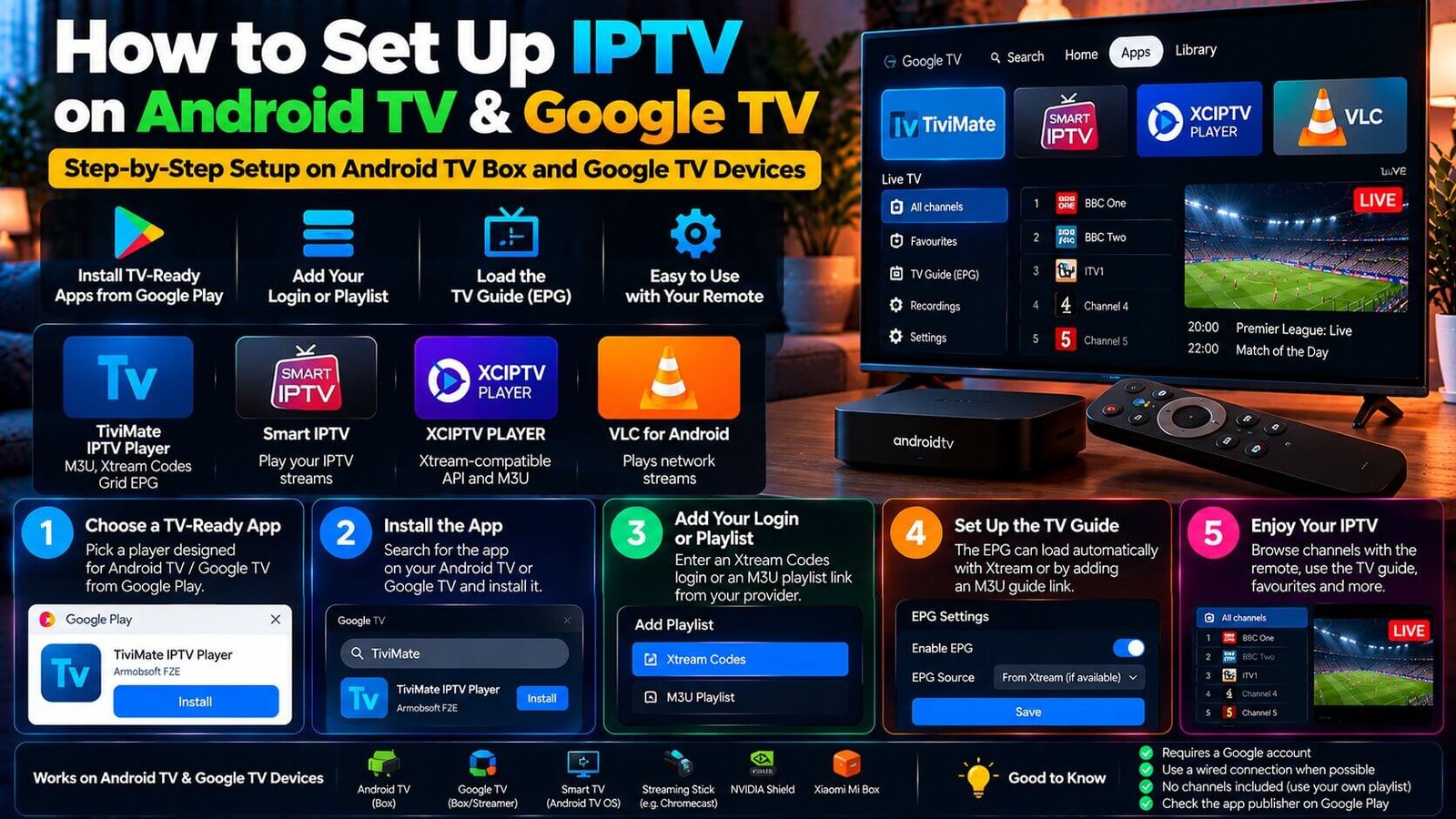
How to Set Up IPTV on Android TV and Google TV
This guide to IPTV on Android TV box and Google TV devices takes you from a fresh device to watching channels. Android TV and Google TV make it easy: you install a player built for TVs from Google Play, add the login your provider sent you, and let the TV guide load. The steps below cover choosing a TV-ready app, installing it, signing in, setting up the guide and getting the most from your remote.
Before you start
- An Android TV or Google TV device: a smart TV, set-top box or streaming stick running Android TV OS. Google explains the differences between the two interfaces in its help centre.
- A Google account signed in on the device, so you can install apps from Google Play.
- The details from your provider, typically a server address plus username and password, or one long playlist link.
- A steady connection. A wired Ethernet connection, where your device has a port, avoids Wi-Fi problems.
Still choosing hardware? Our guide to choosing a streaming box for IPTV compares current devices, and the installation hub lists guides for every other device. On an Amazon Fire TV instead, see setting up IPTV on a Firestick.
Step 1: Choose a player built for TVs
On a TV, choose a player designed for a remote control rather than a touchscreen. These players’ Google Play listings show TV support:
| App (publisher) | What the listing says |
|---|---|
| TiviMate IPTV Player (Armobsoft FZE) | “Designed for Android TV and remote control navigation”; M3U, Xtream Codes, Stalker Portal; grid EPG |
| Smart IPTV (listing linked from siptv.eu) | “Play your IPTV streams on Android TV”; playlists uploaded via the developer’s website |
| XCIPTV PLAYER (OTTRUN) | Installs on “Android Phones, tablets, and TVs”; “easy to navigate using Android TV Remote and D-pad”; Xtream-compatible API and M3U |
| VLC for Android (Videolabs) | Phone, tablet and TV screenshots; plays network streams; no IPTV-style guide described |
For a closer look at the most TV-focused option, see our TiviMate IPTV Player guide. If you’re choosing an app for a phone or tablet instead, see IPTV apps for Android phones and tablets.
Step 2: Installing IPTV on Android TV box and Google TV devices
Google’s help centre describes installing apps on Google TV like this:
- Press the Assistant button on your remote, or select Search on the home screen.
- Say or type the name of the app you want to install.
- If the app is available, open its page and select Install.
You can also browse from the Apps tab, which Google describes as the place to open and manage apps and download apps from Google Play. Before you install, check the publisher on the app’s page, as many IPTV apps have similar names.
Step 3: Add your login or playlist
- Open the player and choose to add a playlist, user or source.
- Pick the option that matches your details: an Xtream-style login or a playlist URL.
- Enter the details exactly as supplied, including
http://orhttps://and any port number. - Save, then give the app a minute or two to load channels the first time.
Typing long details with a remote is slow. A USB or Bluetooth keyboard, if your device supports one, makes it much quicker. Google’s setup guide for Google TV includes connecting Bluetooth devices. If you can, copy the details into a note first so you can read them clearly while typing. Our guides to Xtream Codes and M3U playlists explain each format.
Step 4: Set up the TV guide
Where your provider sends guide data through an Xtream-style login, it tends to appear alongside the channel list. Playlist-link setups may instead need a separate EPG address from the provider. Our guide to adding an EPG to IPTV covers this for TiviMate, IPTV Smarters and Smart IPTV.
Step 5: Make it easy to use with the remote
- Move the app to the front. Google’s help describes reordering apps on Android TV: on the home screen, select Apps, go to the app, touch and hold Select, then choose Move.
- Set up favourites in your player so your regular channels are a click away.
- Use a wired connection for the main TV where possible.
- Keep the player updated through Google Play.
Profiles, updates and household use
- Profiles. Google says that if you add several profiles on a Google TV, installed apps work for all of them except children’s profiles. Install your IPTV player once, from an adult profile.
- System updates. Install any pending system updates before troubleshooting an app; our buffering guide covers what else to check if playback stutters.
- Parental controls. Many IPTV players have their own PIN or parental-control options. TiviMate’s listing, for example, names parental controls.
- More than one TV. Using this TV and another screen simultaneously comes down to your provider’s terms and your plan.
Apps from outside Google Play
Some developers also offer their apps as direct downloads:
- The IPTV Smarters developer lists an Android TV download on its official website, and says the app isn’t distributed elsewhere.
- TiviMate’s website offers a direct APK as well as its Google Play listing.
Installing an app from outside Google Play requires allowing installs from that source on your device. Only do this for downloads from the developer’s own website, and prefer Google Play where an app is available there. Our IPTV Smarters Pro guide covers that app’s official route.
Common setup problems
| Problem | Where to look |
|---|---|
| App not found in Google Play | Check the spelling and publisher; some apps aren’t offered on every device |
| Login rejected | IPTV login errors |
| Signs in but no channels | IPTV playlist not loading |
| Guide is empty | EPG not working |
| Picture is black or stays blank | IPTV black screen |
| App keeps crashing | Google’s help recommends force-stopping and updating the app |
Frequently asked questions
Is Google TV the same as Android TV for IPTV?
They’re closely related: Google says apps from the Play Store can be downloaded to both Google TV and Android TV devices, so the IPTV setup is very similar.
Do I need a Google account to install IPTV apps on Android TV?
To install from Google Play, yes: the device needs to be signed in to a Google account.
Which player should I use on an Android TV box?
Choose one built for TV remotes. TiviMate, Smart IPTV and XCIPTV PLAYER all describe TV use in their Google Play listings.
Can I type my login with my phone instead of the remote?
A USB or Bluetooth keyboard is one reliable option if your device supports it. Otherwise, copy the details carefully from your provider’s email.
Do Android TV IPTV apps support Stalker portals?
Some do. TiviMate’s Google Play listing names Stalker Portal support. Check the listing of the app you plan to use.
Ready to watch on your Android TV?
With a player installed, the last step is a login. Request a free 24-hour trial and add the details to your Android TV or Google TV device.