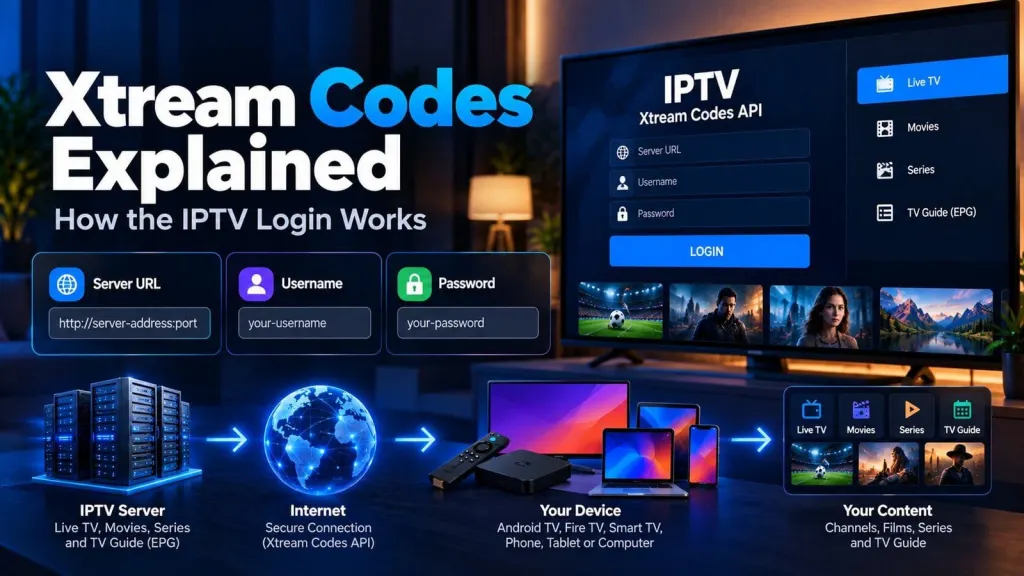
Xtream Codes Explained: How the IPTV Login Works
An Xtream IPTV login is the three-part sign-in most IPTV services use: a server URL, a username and a password. Enter those three details into a compatible player and it loads your live channels, films, series and TV guide in one go. This guide explains what each part does, how Xtream Codes compares with an M3U playlist link, which players support it, and how to check your login safely when something doesn’t work.
What “Xtream Codes” means today
You’ll see the same idea described in several ways: Xtream Codes, Xtream code, Xtream login, Xtream API, and sometimes misspelt as “xstream codes” or “xtreme”. The name originally belonged to a piece of server software. Today it’s used as shorthand for a login format and connection method that many IPTV servers and player apps support.
In practice, when a provider says “use the Xtream Codes login” or a player shows a button labelled “Login with Xtream Codes API”, they mean the same thing: sign in with a server address, a username and a password rather than a single playlist link.
If you’re new to how internet TV works in general, our guide to what IPTV is covers the basics first.
The three details in an Xtream IPTV login
Your provider sends these by email or message once your account or trial is set up. Each has a specific job:
| Detail | What it looks like | What it does |
|---|---|---|
| Server URL | A web address, often with a port number at the end, such as http://server-address:port | Tells the player which server to connect to |
| Username | A string of letters and numbers set by your provider | Identifies your account on that server |
| Password | A second string, often random | Confirms the account is yours |
A few details matter more than people expect:
- Include the port if your provider gave you one. The number after the colon is part of the address, and without it the player may not connect.
- Check
httpversushttps. Use exactly what your provider sent. - Usernames and passwords are usually case-sensitive. Watch for a capital letter at the start that your phone added automatically.
- Some players ask for a “playlist name” too. That’s just a label for your own reference; any name works.
For more about what the server side does, see our guide to what an IPTV server is.
How the Xtream Codes API works
“API” stands for application programming interface: a set of standard requests one piece of software can send to another. With Xtream Codes, the player app and the server speak the same set of requests. Put simply, the process looks like this:
- Sign-in. The player sends your username and password to the server address you entered.
- Account check. The server confirms the account is active and returns basic details, typically including its status and expiry date.
- Categories and lists. The player asks for the live TV categories, films and series, and the server replies with organised lists.
- TV guide. The player requests programme listings for the channels, which fill its guide screen.
- Playback. When you pick a channel or title, the player requests that stream and starts playing it.
Because the server sends everything in a structured way, the player can sort content into sections automatically. That’s the main reason Xtream Codes is usually quicker to set up than a playlist link, and why films and series often appear with posters and descriptions.
Xtream Codes vs an M3U playlist link
Most providers offer both options. An M3U playlist is a plain text list of streams. The HTTP Live Streaming specification, RFC 8216, describes playlists derived from the M3U format as UTF-8 text files containing addresses and descriptive tags, and IPTV playlists follow the same basic idea.
| Xtream Codes login | M3U playlist link | |
|---|---|---|
| What you enter | Server URL, username, password | One long web address |
| Live TV | Yes | Yes |
| Films and series sections | Usually loaded automatically | Depends on the playlist and the player |
| TV guide | Usually loaded automatically | May need a separate guide link |
| Account status and expiry | Often shown in the player | Not usually shown |
| Player support | Most dedicated IPTV players | Almost every IPTV player, plus general media players |
If your player supports both, Xtream Codes is normally the simpler choice. An M3U link is the fallback for players that only accept playlists. Our guide to M3U playlists explains that format in full.
Xtream IPTV players
An Xtream IPTV player is any player app with an Xtream Codes sign-in option. Two widely used examples:
- IPTV Smarters Pro. Its official features page lists M3U playlist support and API-based login support, which is the type of sign-in an Xtream Codes login uses. It’s available for several platforms, and our guide to setting up IPTV Smarters Pro walks through the Xtream login screen step by step.
- TiviMate. Its Google Play listing names M3U, Xtream Codes and Stalker Portal as supported playlist formats. It’s designed for Android TV and remote-control use rather than phones. See our guide to the TiviMate IPTV player for more.
Whatever player you pick, two rules apply. First, the player doesn’t supply any channels itself: it only displays what your login gives it access to. Second, install players only from official app stores or the developer’s own website, and check the developer name. App stores contain look-alike apps with similar names.
If you’re still choosing, our comparison of the best IPTV players goes through the options device by device.
How to enter your Xtream Codes login
The exact screens differ between players, but the pattern is almost always the same:
- Open the player and choose to add a new user, playlist or connection.
- Select the option labelled Xtream Codes, Xtream Codes API or similar.
- Enter any name you like for the connection.
- Type in the username and password character for character; copying and pasting is safest.
- Enter the server URL, including
http://orhttps://and the port number if there is one. - Save or sign in. The player then fetches the channel list and TV guide, which takes longest the very first time.
On a TV, typing long passwords with a remote is where most mistakes happen. If your device has a companion phone app with a keyboard, use it. For full device-by-device instructions, see our IPTV setup guides.
How to check whether your login works
People often search for a way to check an Xtream code online. The safest check is the simplest one: sign in with a trusted player on your own device. A working login loads your categories; a faulty one shows an error straight away.
Avoid pasting your login into third-party “checker” websites. Your username and password are the keys to your account, and anyone who has them can use your connections. Treat them like any other password.
If the login fails, work through these checks in order:
- Re-enter every detail, copying and pasting where possible, and look for extra spaces at the end.
- Confirm the server URL format, including the port.
- Check the account hasn’t expired, especially after a free trial ends.
- Check you haven’t exceeded the connection limit by signing in on too many devices at once.
- Try a second player to rule out a problem with the app itself.
For specific error messages and what they mean, see our guide to IPTV login errors. If the login works but streams won’t play, our IPTV troubleshooting checklist covers what to check next.
Frequently asked questions
Is an Xtream code the same as an M3U link?
No. They give access to the same account, but in different formats. An Xtream Codes login uses three separate details, while an M3U link combines everything into one web address.
Where do I get my Xtream Codes login?
From your IPTV provider. With IPTV UK HQ, your login details are sent once your free trial or subscription is set up.
Can I use the same Xtream login on more than one device?
You can enter it on several devices, but how many can stream at the same time depends on your plan’s connection limit.
Why does my player say my Xtream login is invalid?
The most common causes are a typing mistake, a missing port number in the server URL or an expired account. Re-enter the details carefully before trying anything else.
Should I use free Xtream codes found online?
No. Codes shared publicly belong to someone else’s account, stop working without warning and often come with look-alike apps or links you shouldn’t trust. Use the login your own provider gives you.
Get your own Xtream login
Try IPTV UK HQ with a free 24-hour trial. You’ll receive login details that work with Xtream Codes players such as IPTV Smarters Pro and TiviMate, so you can test the service on your own device.