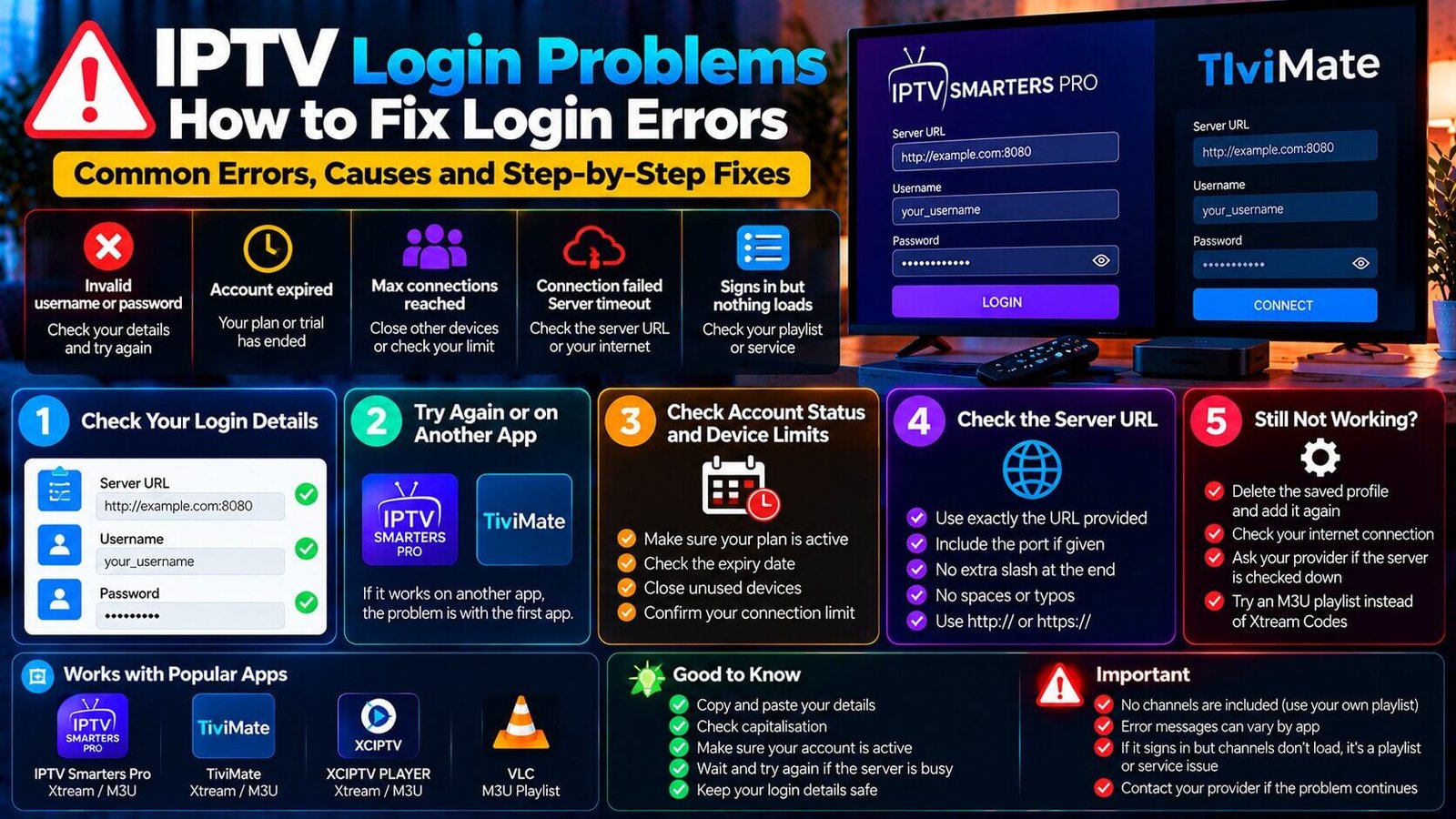
IPTV Login Problems: How to Fix Login Errors
When an IPTV login fails, the message on screen is your best clue. “Invalid” details, an expired account, too many connections and a server that won’t respond each have a different fix. This guide matches common login errors to their causes, gives a quick checklist for re-entering your details, and covers signing in to IPTV Smarters Pro and TiviMate specifically.
IPTV login errors and what they mean
Exact wording varies by app, but most messages fall into one of these groups:
| Message (typical wording) | Usual cause | First fix |
|---|---|---|
| “Invalid username or password”, “Authentication failed” | A typing mistake, wrong capitalisation or an extra space | Re-enter the details |
| “Account expired”, “Subscription ended” | The plan or trial has ended | Check the account status |
| “Max connections reached”, “Too many devices” | More devices signed in than your plan allows | Close other sessions |
| “Connection failed”, “Server timeout”, “Unable to connect” | Wrong server address or port, or the server is unreachable | Check the server URL |
| Signs in, but nothing loads | Not a login problem: the playlist or service | See our guide to an IPTV playlist not loading |
Note exactly what the message says, including any error number, before you change anything. It makes getting help much quicker.
Re-entering your IPTV login: a checklist
Most failed logins are fixed by re-entering the details carefully. An Xtream Codes login has three parts, and each has its own common mistakes:
| Field | Check |
|---|---|
| Server URL | Starts with http:// or https:// as supplied; includes the port after a colon if one was given; no slash or space added at the end |
| Username | Correct capitalisation; no automatic capital letter at the start; no trailing space |
| Password | Letters that look alike (O and 0, l and 1); no trailing space |
- Copy and paste from your provider’s message wherever you can, rather than typing with a remote.
- Delete the saved profile and add it again if you’ve edited it several times. Old values can linger.
- Try the details in a second app. If they work there, the problem is with the first app, not the login.
If you’re unsure what each field is for, our guide to Xtream Codes logins explains the format in full.
Expired accounts and connection limits
A login can be typed perfectly and still fail because of the account behind it.
- Expired trial or plan. When a trial or subscription ends, the same details stop working. Check the end date in any confirmation message, or ask your provider.
- Connection limit. Some IPTV services limit the number of simultaneous streams or connections allowed on an account. If the same details work on one device but fail when another stream starts, close unused sessions and check the connection limit that came with your service.
- Details changed. If your provider reset your password or moved you to a new server, older saved logins on other devices stop working. Update them all.
Some apps show the account’s status and expiry date after a successful sign-in, which helps you spot problems before they happen.
When the server won’t respond
Connection and timeout errors point to the server address or the path to it, rather than your username and password.
- Check the server URL and port against your provider’s message.
- Test your internet connection in another app, to rule out a wider outage.
- Turn off any VPN or DNS changes temporarily; they can block or reroute the connection.
- Restart your router and device.
- Wait and retry in case of server maintenance, then contact your provider if the error persists.
For faults beyond the login screen, our IPTV troubleshooting checklist covers the wider picture.
IPTV Smarters Pro login problems
The developer’s features page lists “API-Based Login Support” alongside M3U playlists. IPTV Smarters supports an API/Xtream-style sign-in that asks for a profile name, username, password and server URL, as well as adding an M3U playlist by URL.
- The profile name is only a label. A mistake there doesn’t affect the login.
- Choose the right login type. If your provider gave you a single long link, use the playlist option instead of the Xtream login.
- Use the genuine app. App stores contain look-alike “Smarters” apps from other developers; see our guide to downloading IPTV Smarters Pro for the official sources.
If the login works but the app crashes, freezes or won’t open, the issue is the app rather than the sign-in; see IPTV Smarters not working.
TiviMate login problems
TiviMate accepts three kinds of source, according to its Play Store page: Xtream Codes, M3U and Stalker Portal. The “login” is the playlist you add, so failures usually come from choosing the wrong type or entering the details in the wrong field.
- Xtream Codes details go in the Xtream option: server, username and password.
- A long link goes in the playlist URL option.
- A TiviMate account is different from your IPTV login. Signing in to your TiviMate account relates to Premium and your devices, not to your channels. See our guide to TiviMate Premium.
For the full setup, see our TiviMate IPTV Player guide.
Keeping your login details safe
Your IPTV login is the key to your account. Anyone who has it can use your connections, which can cause “max connections” errors for you.
- Don’t share your details publicly or paste them into unknown websites.
- Avoid login details found online that don’t belong to you; they stop working without warning.
- If you think your details have been shared, ask your provider to reset them, then update each of your devices.
Our guide to keeping your IPTV account secure covers this in more detail.
Frequently asked questions
Why does my IPTV login work on one device but not another?
Usually a typing difference between the two devices, or the connection limit being reached when the second device signs in. Copy the details again and close unused sessions.
Is the IPTV Smarters Pro login the same as my IPTV subscription login?
For provider-supplied channels, yes: you enter the credentials or playlist your IPTV service gave you. Those service credentials are separate from any app-related account, activation or purchase.
Do I need a TiviMate login to watch channels?
No. You add your provider’s playlist or Xtream Codes details. A TiviMate account is only used for Premium and device management.
What does “max connections reached” mean?
Your plan’s limit on simultaneous devices has been reached. Close the app on another device, or check whether someone else is using your login.
Why did my IPTV login stop working suddenly?
The most common reasons are an expired plan, changed details or server maintenance. Check your account status and any recent messages from your provider.
Can’t sign in to IPTV UK HQ?
If you’re a customer and your details still won’t work after these checks, contact our team with the exact error message and the app and device you’re using.