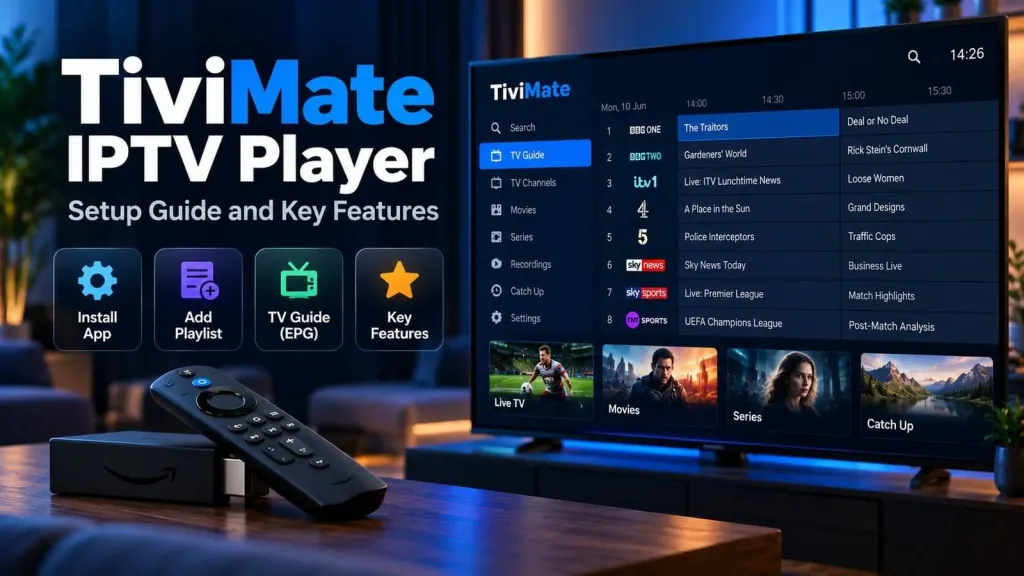
TiviMate IPTV Player: Setup Guide and Key Features
TiviMate IPTV Player is an Android TV app that turns your provider’s playlist into a channel list with a full-screen TV guide, much like the menus on a traditional set-top box. It’s built for the living-room TV and a remote control rather than a phone. This guide explains what TiviMate does, which devices it runs on, how to add your playlist and TV guide, and which features are worth setting up once you’re in.
What is TiviMate?
TiviMate is a media player for IPTV playlists, developed by Armobsoft FZE. On its Google Play listing the developer describes it as “the effortless way to watch your playlists”, with a grid-style TV guide and an interface “tailored for large screens”.
The most important thing to understand is what TiviMate isn’t. It doesn’t come with any channels. The developer is explicit on this point: its notice describes TiviMate as a media player only, adding that “to watch anything, you must add your own playlists”. The channels, films and guide data all come from your IPTV provider; TiviMate is the screen you watch them through.
People sometimes search for it as “TV Mate”, “Tivi Mate” or “TVMate IPTV player”. They all mean the same app, and the correct spelling is TiviMate.
Which devices can run TiviMate?
TiviMate is an Android app designed for televisions. The developer’s own website says it “is intended for Android TV devices and is not optimized for phones and tablets”, and the Google Play listing says it is “not optimized for touch devices such as phones or tablets”.
| Device | Can it run TiviMate? | Notes |
|---|---|---|
| Android TV and Google TV boxes, sticks and TVs | Yes | Install from Google Play or the developer’s website |
| Amazon Fire TV (Fire OS models) | Yes, by installing the Android version | See our TiviMate Firestick installation guide |
| Amazon Fire TV (Vega OS models) | Not via the official download | Vega OS only installs apps from the Amazon Appstore |
| Android phones and tablets | Not recommended | The developer says it isn’t optimised for touchscreens |
| Apple TV, iPhone, iPad | No official version listed | Use a player built for Apple devices |
| Samsung and LG smart TVs | No official version listed | These TVs use their own app stores |
| Windows PC or Mac | No official version listed | Use a desktop player instead |
So if you’ve searched for “TiviMate Apple TV”, “TiviMate iOS”, “TiviMate Samsung TV” or “TiviMate Windows”, the honest answer is that the developer only lists Android downloads. For those devices, see our guides to IPTV apps for Apple TV, the Smart IPTV app for Samsung and LG TVs and IPTV players for Windows.
What you need before you start
- A compatible device: an Android TV or Google TV device, or a Fire TV device that runs Fire OS.
- Your playlist details: an Xtream Codes login (server address, username and password) or an M3U link from your provider.
- An EPG address, if your provider supplies the guide separately from an M3U link.
- A steady connection. A wired connection or strong Wi-Fi makes the first playlist and guide download noticeably quicker.
- A way to type long addresses. A phone keyboard app or a USB keyboard saves a lot of time compared with the on-screen keyboard.
Getting the TiviMate app
The developer’s website offers two official routes:
- Google Play. On an Android TV or Google TV device, search for TiviMate in Google Play and check the developer is Armobsoft FZE.
- Direct APK from tivimate.com. The website describes this as a version that “has fewer restrictions and checks for updates”. It’s the route used on devices without Google Play, such as a Fire TV Stick.
Use one of these two sources only. Copies and “modded” versions of well-known players circulate on other websites; they don’t get official updates and you can’t be sure what’s been changed.
For step-by-step instructions on Amazon devices, including the official Downloader code, see our guide to installing TiviMate on a Firestick. For other Android TV devices, the IPTV installation guides cover the basics of installing a player.
Adding your playlist
When you first open TiviMate, it asks you to add a playlist. The Google Play listing names three supported formats: M3U, Xtream Codes and Stalker Portal. Most providers give you either an Xtream Codes login or an M3U link.
Using an Xtream Codes login
- Choose to add a playlist and select the Xtream Codes option.
- Fill in the three details from your provider: server, username and password. Copy the server address in full, port number included.
- Give the playlist a name you’ll recognise, then continue.
- Wait while TiviMate loads your channel groups. Large lists can take a minute or two the first time.
If you’re unsure what each field means, our guide to Xtream Codes logins explains the server URL, username and password.
Using an M3U playlist link
- Choose to add a playlist and select the option for a playlist URL.
- Enter the full link exactly as your provider sent it. On a TV, it’s much easier to use a phone keyboard app or a short link from your provider than to type a long address with the remote.
- Name the playlist and let TiviMate load it.
Our guide to M3U playlists explains what’s inside a playlist link and how it differs from an Xtream login.
TiviMate supports multiple playlists, so you can add more than one source and switch between them.
Setting up the TV guide
TiviMate’s grid-style guide is one of its main features, but it only works when the app has programme data to show. New to the term? Start with our EPG explainer.
- With an Xtream Codes login, guide data usually loads automatically from your provider.
- With an M3U link, you may need to add a separate EPG address from your provider in the playlist’s settings.
- Give it time. The first guide download can take a few minutes, especially with large channel lists.
- Check the time zone if programmes appear an hour early or late.
For step-by-step instructions on adding and updating guide sources, see our guide to setting up IPTV EPG.
Key features of the TiviMate IPTV player
The developer lists these features on its website and Google Play listing:
| Feature | What it does | Worth knowing |
|---|---|---|
| TV guide (EPG) | Shows the programme schedule in a grid | Depends on guide data from your provider |
| Multiple playlists | Lets you add and switch between sources | Useful if you use more than one service |
| Favourite channels | Bookmarks the channels you watch most | Saves scrolling through long lists |
| Catch-up | Plays past broadcasts | Only where your provider supports catch-up for that channel |
| Recording | Records programmes to watch later | Needs enough free storage on the device |
| Search | Finds channels and programmes | Searches the content in your playlist |
| Parental controls | Restricts access to chosen content | Handy in a family home |
| Multiview | Shows several channels on one screen | Needs a capable device and enough bandwidth for several streams |
Settings worth changing early
- Set up favourites for the channels you watch most, so they’re a couple of clicks away on the remote.
- Turn on parental controls before children use the TV, if your household needs them.
- Adjust the look and layout. The developer lists personalisation among the app’s features, so you can make the interface suit your screen.
- Add a second playlist only if you need it. Fewer sources keep the channel list easier to browse.
Menu names can change between app versions, so look for these options in the app’s settings screens.
Using TiviMate day to day
Once your playlist and guide are loaded, most viewing happens in two places: the channel list and the TV guide.
- Browse by group. Providers usually sort channels into groups, such as entertainment, news or films. Open a group to see only those channels rather than scrolling one long list.
- Use the guide to plan ahead. Move right along the grid to see what’s on later, and select a programme for its description.
- Catch up on missed programmes where your provider offers catch-up for that channel. Channels without catch-up simply play live.
- Record with storage in mind. Recordings take up space, and streaming sticks in particular have limited storage. Delete old recordings regularly.
- Use multiview sparingly. Each extra window is another live stream, so it needs more bandwidth and more processing power from your device.
If playback stutters on an Amazon stick, our guide to fixing Firestick buffering covers the device-side causes.
When something isn’t working
| Problem | First thing to check |
|---|---|
| Playlist won’t load | Re-enter the login or link; check your account is active |
| Guide shows no programmes | Add or refresh the EPG source; wait for the first download |
| An error number appears | See our guide to IPTV error codes |
| Channels stop and start | Your connection or device; see our IPTV troubleshooting checklist |
If you’re deciding between TiviMate and another app, our comparison of TiviMate and IPTV Smarters sets out the differences.
Frequently asked questions
Is TiviMate free?
It’s free to install, with in-app purchases. A Premium upgrade unlocks extra app features; it doesn’t include channels.
Does TiviMate work on a phone?
It can be installed on some Android phones, but the developer says it’s designed for Android TV and not optimised for phones, tablets or touchscreens.
Is there a TiviMate app for iPhone or Apple TV?
No official Apple version is listed by the developer. The official downloads are Google Play and an Android APK from tivimate.com.
Which playlist formats does TiviMate support?
According to its Google Play listing, M3U, Xtream Codes and Stalker Portal.
Can I use TiviMate with more than one provider?
Yes. TiviMate supports multiple playlists, so you can add more than one source and switch between them.
Try TiviMate with IPTV UK HQ
Once TiviMate is installed, all you need is a playlist. Request a free 24-hour trial and you’ll receive login details you can add to TiviMate on your own TV.