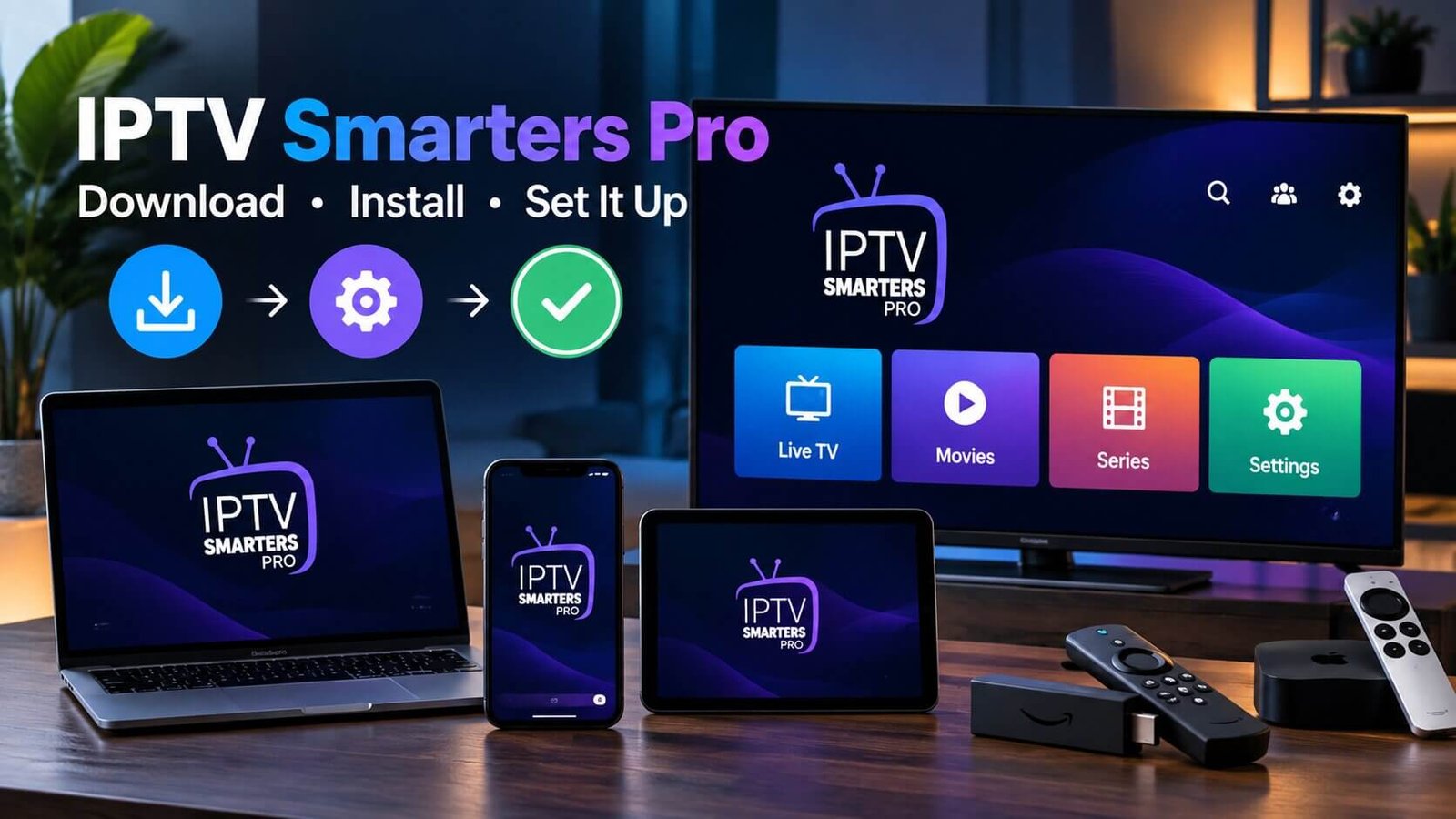
IPTV Smarters Pro: How to Download, Install and Set It Up
IPTV Smarters Pro is a media player app: it organises and plays the live TV, films and series that your own IPTV provider supplies, but it does not come with any channels itself. This guide shows where to download IPTV Smarters Pro from official sources on each type of device, how to install it, how to log in with the details your provider gives you, and which settings are worth checking on first launch.
What IPTV Smarters Pro is (and isn’t)
IPTV Smarters Pro is a player. Think of it like a music app that plays songs you already own: it gives you a TV guide, channel lists, a film and series library view and a video player, but everything you watch comes from the service you connect to it.
The developer is explicit about this. The official IPTV Smarters Pro website describes the app as “a media player only” and states that it “does not operate television channels, host movies or series, sell IPTV subscriptions, or provide pre-loaded playlists or media libraries”. The same point appears in the developer’s Apple App Store listing for its iPhone and iPad edition.
That distinction matters for two reasons:
- The app alone shows nothing. You need login details from an IPTV provider before any channels appear.
- Problems can sit in two places. If playback fails, the cause may be the app, your device, your connection or the provider’s service. Knowing which part does what makes troubleshooting much quicker.
If you’re new to the idea of internet TV in general, our guide to how IPTV works covers the basics before you install anything.
Where to download IPTV Smarters Pro safely
Search any app store for “Smarters” and you’ll find a long list of look-alike apps with similar names and logos from unrelated developers. Some are harmless, others are not. The safest approach is to start from the developer’s own download page, which lists the official version for each platform and says the application “is not distributed through any other website”.
| Device | Official route (per the developer’s download page) | Notes |
|---|---|---|
| Android phone or tablet | Direct download (APK) from the official download page | The page publishes a SHA-256 checksum for the file |
| Android TV / Google TV | Direct download (APK) from the official download page | Same Android build as phones and tablets |
| iPhone, iPad, Apple TV | Apple App Store: Smarters Player Lite | Published by WHMCS SMARTERS; check the developer name before installing |
| LG Smart TV | LG Content Store: search for “IPTV Smarters Player” | Availability can depend on your TV’s model and software |
| Samsung Smart TV | Samsung’s app store: search for “IPTV Smarters” | The developer also documents a USB installation method while its updated Samsung app is in review |
| macOS | Direct download from the official download page | — |
| Windows | Direct download from the official download page | See our Windows installation guide |
A few safety habits are worth keeping:
- On Apple devices, the official listing is called Smarters Player Lite and the developer shown is WHMCS SMARTERS. Several other apps on the UK App Store use “Smarters” in their names but come from different developers.
- Avoid APK mirror sites and “modded” versions. You gain nothing and risk installing something you didn’t ask for.
- If you download the Android file, you can compare its checksum with the one on the official page. That step is optional but confirms the file hasn’t been altered.
Firestick and Fire TV owners should read our Firestick IPTV setup guide first. Newer Fire TV Sticks run Amazon’s Vega OS, which can’t install Android files at all, so the route depends on which model you have. Once you know your stick can install it, the step-by-step Smarters install for Firestick covers the specifics.
What you need before you start
Installing the app takes a few minutes. Getting it to show channels requires three things:
- A compatible device from the table above, with enough free storage for the app.
- A stable internet connection. A wired Ethernet connection or a strong Wi-Fi signal makes a noticeable difference to live TV.
- Login details from your IPTV provider, usually either an Xtream Codes login (a server URL, a username and a password) or an M3U playlist link.
Keep your login details somewhere you can copy them accurately. Most setup problems come down to a single mistyped character in the server address or password.
How to install the app on your device
Android phones, tablets and Android TV
- On the device, open the official IPTV Smarters Pro download page in a browser and download the Android version.
- When Android warns that it can’t install files from this source, allow installs for that browser or file manager only. Android asks for this permission per app.
- Open the downloaded file and confirm the installation.
- Once it’s installed, you can switch the “install unknown apps” permission back off for the browser. It isn’t needed again until you update.
On an Android TV or Google TV without a convenient browser, you can use a download helper app from the Google Play Store to fetch the file from the same official address.
iPhone, iPad and Apple TV
- Open the App Store and search for Smarters Player Lite.
- Check that the developer is listed as WHMCS SMARTERS before tapping Get.
- Install and open the app. At the time of writing the UK App Store listing requires iOS 15.6 or later on iPhone.
The Apple edition has its own quirks, which our IPTV Smarters Lite guide covers.
Samsung and LG Smart TVs
Open your TV’s app store (the LG Content Store on LG TVs, or the Apps section on Samsung TVs) and search for the name given in the table above. App availability on smart TVs varies with the model and software version. If it doesn’t appear, your TV may not support it, and a streaming stick or box is usually the simpler route.
Windows and Mac
Download the installer for your computer from the official download page and run it as you would any other desktop program. On Windows, make sure the file came from the official page before you accept the security prompt.
How to log in to IPTV Smarters Pro: Xtream Codes or M3U
The first time you open IPTV Smarters Pro, it asks how you want to add your content. The developer lists two main methods: an API-based login and M3U playlists. Your provider will tell you which one to use; many offer both.
Option 1: Xtream Codes (API) login
This is usually the better choice when it’s available, because it loads channel groups, the film and series library and the TV guide in one go.
- Choose the option to log in with an Xtream Codes (API) account.
- Enter any name you like for the profile, for example “Living room TV”.
- Enter the username and password exactly as your provider sent them. Both are usually case-sensitive.
- Enter the server URL in full, including
http://orhttps://and the port number if one was given (for examplehttp://example-server.com:8080). - Confirm, then wait while the app downloads the channel list and programme guide. The first load can take a minute or two.
Option 2: M3U playlist link
- Choose the option to add a playlist from a URL.
- Paste the full M3U link from your provider. It is usually long, so copy and paste it rather than typing.
- If your provider gave you a separate EPG (TV guide) link, add it in the app’s EPG settings afterwards.
Whichever method you use, treat the details like a password. Anyone with your login can use your subscription, and providers may suspend accounts that are shared.
A quick tour of the IPTV Smarters app
Once you’ve logged in, the home screen gives you the main sections. According to the developer’s feature list, the app includes:
- Live TV: channels grouped into the categories your provider supplies.
- Movies and Series: the on-demand library, if your provider includes one.
- Electronic Programme Guide (EPG): now-and-next information, where your provider supplies guide data.
- Catch-up: previously aired programmes, but only where your provider offers catch-up.
- Multi-screen: several streams at once on supported devices.
- Favourites, Recently Watched and Continue Watching for quicker access.
- Parental controls to restrict selected sections.
- Subtitles and audio track selection where the stream includes them.
Notice how many of those features depend on the provider. If catch-up or the TV guide is missing, the app is usually showing exactly what it receives.
Settings worth checking first
Menu names vary slightly between platforms and versions, but these are the settings most people benefit from reviewing:
- Player choice. IPTV Smarters Pro has a built-in player and also supports external players. If a stream stutters or shows no picture, switching player is a quick test.
- TV guide refresh. If the EPG looks empty after your first login, refresh or reload it from the settings rather than reinstalling.
- Parental controls. Set a PIN before children use the device, and lock any categories you don’t want them browsing.
- Favourites. Adding your regular channels to Favourites saves a lot of scrolling through long channel lists.
IPTV Smarters and your subscription
A common question is whether you can buy an “IPTV Smarters subscription”. The app’s developer doesn’t sell TV content, so there is no Smarters channel package to buy. When people talk about a subscription for IPTV Smarters Pro, they mean a subscription from an IPTV provider whose login details work in the app.
If you’re choosing a provider, check that it supplies Xtream Codes or M3U details, that it supports the devices you use, and that you can try it before paying. Our IPTV subscription plans include 1-month, 3-month, 6-month and Premium Annual options, and all provide login details that work in players like this one. If you’d rather test first, you can request a free 24-hour trial and set it up in IPTV Smarters Pro before choosing a plan.
If something doesn’t work
Most early problems fall into a few groups:
- “Invalid login” or authentication errors: re-enter the server URL, username and password with no extra spaces, and check that the server address includes the port.
- Channels load but won’t play: try the other player in settings, then test on a different network.
- Empty TV guide: refresh the EPG and give it time to load.
For step-by-step fixes, see our guide to IPTV Smarters problems and fixes, or the wider IPTV troubleshooting checklist if you’re not sure whether the app is the cause.
Frequently asked questions
Is IPTV Smarters Pro free?
The Apple edition, Smarters Player Lite, is listed as free on the UK App Store, and the developer offers direct downloads for other platforms from its website. The app itself doesn’t include any content, so you still need a service to connect it to.
Does IPTV Smarters Pro come with channels?
No. The developer states that the app does not provide, sell or include any channels, films, series, playlists or subscriptions. You add your own source using the login details from your provider.
Is IPTV Smarters Pro on the Google Play Store?
The developer’s official download page offers the Android version as a direct download rather than linking to Google Play. Be cautious with similarly named apps in any store, and check the developer name before installing.
What’s the difference between IPTV Smarters Pro and Smarters Player Lite?
Smarters Player Lite is the version the developer lists for Apple devices (iPhone, iPad and Apple TV). IPTV Smarters Pro is the name used for the Android, Android TV, smart TV and desktop versions. Check the App Store listing for the formats the Apple edition currently supports, as these may differ from Smarters Pro on other platforms.
Can I use IPTV Smarters Pro on a Firestick?
On Fire TV devices running Fire OS, which is based on Android, it can generally be installed from the official Android download. Fire TV Sticks running Vega OS can’t install Android apps from outside the Amazon Appstore, so check your model first in our Firestick setup guide.
Set up IPTV Smarters Pro on your device
Once the app is installed, all you need is a working login. Follow our device-by-device IPTV setup guide, or test the whole setup with a free 24-hour trial before you choose a plan.