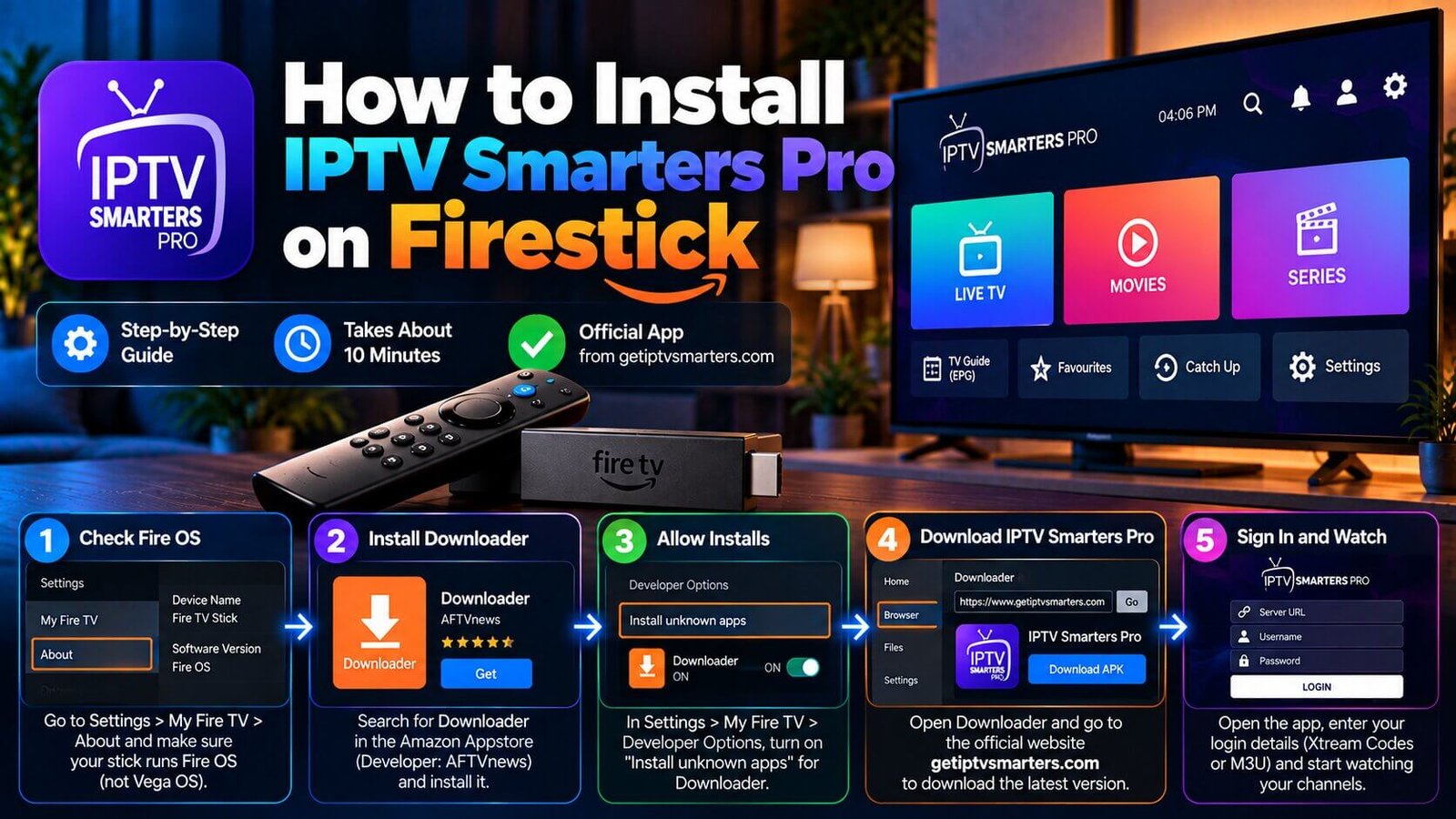
How to Install IPTV Smarters Pro on Firestick
This IPTV Smarters Firestick guide takes about ten minutes to follow on a stick that runs Fire OS. You install Downloader from the Amazon Appstore, allow it to install apps, then download IPTV Smarters Pro from the developer’s official website and sign in with your login details. We go through each step, explain why we don’t give a Downloader “code” for the app, and cover what to do if your stick runs Vega OS instead.
IPTV Smarters Firestick install: before you start
Have these ready:
- Your Fire TV Stick, connected to the internet and signed in to your Amazon account.
- The login your IPTV provider sent you, in Xtream Codes format or as an M3U link.
- A few minutes and, ideally, the Fire TV phone app, whose keyboard makes typing web addresses and passwords much easier than using the remote.
IPTV Smarters Pro is a media player. It doesn’t include any channels; it shows the content your provider’s login gives you access to. If you’d like to understand the app itself first, see our guide to setting up IPTV Smarters Pro.
Step 1: Check your stick runs Fire OS
The official app can only be installed this way on a Fire OS stick. According to Amazon, the Fire TV Stick 4K Select and every newer Fire TV Stick use Vega OS instead, and Vega doesn’t allow installs from outside the Amazon Appstore.
- Open Settings from the Fire TV home screen.
- Go to My Fire TV, then About.
- Check the model name and software version.
If you’re unsure what the model name tells you, the IPTV Firestick setup guide lists which models run which system. If yours runs Vega OS, skip to If the install doesn’t work for your options.
Step 2: Install Downloader
Fire TV doesn’t have a normal web browser for downloading files, so you need Downloader, a free app from AFTVnews. According to its developer, you can use it to enter the web address of a file or website, search the web, or enter a numeric short code.
- On the home screen, open Find and then Search.
- Type Downloader and select it from the results.
- Check the developer is AFTVnews, then select Get or Download.
- Open Downloader once and allow any permissions it asks for, so it can save files.
Step 3: Allow Downloader to install apps
Fire OS blocks installs from outside the Appstore until you give a specific app permission. Here, that app is Downloader.
- Open Settings and select My Fire TV.
- Look for Developer Options. It’s hidden on some software versions: to reveal it, go into About, highlight the device name and click the select button seven times in a row.
- Inside Developer Options, find the unknown-apps setting. On most versions it’s Install unknown apps, where you turn it on for Downloader; older versions show a single Apps from Unknown Sources switch.
Allow Downloader only, not every app on the stick. You can switch the setting off again once you’ve finished installing.
Step 4: Download IPTV Smarters Pro from the official site
The developer publishes the Android version of IPTV Smarters Pro on its official download page. That’s the version to use on a Fire OS stick.
- Open Downloader and select the address box on the Home tab.
- Type getiptvsmarters.com/download and select Go. The official download page opens inside Downloader.
- Scroll to the Android section and select the Android download. The page lists the file name and version; at the time of writing it was version 5.0.
- Wait for the download to finish. The file is large (around 77 MB for version 5.0), so it may take a minute or two.
- When prompted, select Install. When it’s finished, select Done rather than Open, so you can tidy up first.
The official page also publishes a SHA-256 checksum for each file, a fingerprint that lets you confirm the file hasn’t been altered. You don’t need to check it on the stick, but it’s a sign you’re using the genuine download.
If the page layout has changed, look for the Android APK link on the same official page. Don’t search for the file elsewhere.
About IPTV Smarters Downloader codes
Many guides give a short number to type into Downloader instead of a web address. Those codes are created with the AFTVnews URL shortener and can point to any file, chosen by whoever made the code.
At the time of writing, the official IPTV Smarters download page doesn’t publish a Downloader code. So any “IPTV Smarters Downloader code” you find online was made by a third party, and you can’t easily see which file it points to or whether it has changed since.
That’s why this guide uses the official web address instead. It takes a few more seconds to type, but you know exactly where the app is coming from. If the developer publishes an official code in future, it will appear on its own download page.
Step 5: Sign in and load your channels
- Open IPTV Smarters Pro from your list of apps. Accept the terms if asked.
- Pick the Xtream Codes (API) sign-in.
- Give the profile any name you like, then enter the username, password and server URL just as they appear in your provider’s message, including the port number if one was given.
- Confirm and give the app a moment to fetch your channels, films, series and TV guide; it’s slowest on the very first sign-in.
The IPTV Smarters Firestick sign-in works the same way with an M3U link: if that’s what you have, pick the playlist-from-URL option and paste it in. For every screen and setting in the app, see our IPTV Smarters Pro setup guide. Our guide to Xtream Codes logins explains the difference and what each detail does.
Tip: to reach the app faster, open your apps list, highlight IPTV Smarters Pro, press the options button on the remote and move it to the front.
After installing: tidy-up and updates
- Delete the installation file. The APK file is no longer needed once the app is installed. Remove it from Downloader’s Files section to free up storage. Most Fire TV Sticks have 8 GB of storage, according to Amazon’s specifications, so it’s worth reclaiming the space.
- Consider switching off unknown app installs for Downloader until you need them again.
- Update from the same place. When a new version is released, download it from the official page in the same way. It installs over the old version.
- Keep Fire OS up to date under Settings > My Fire TV > About.
If playback stutters once you’re up and running, see our guide to fixing Firestick buffering.
If the install doesn’t work
| Problem | Likely cause | What to do |
|---|---|---|
| Downloader isn’t in the Appstore | The stick runs Vega OS | Sideloading isn’t possible; see below |
| “Install blocked” or no Install button | Unknown app installs not allowed for Downloader | Repeat Step 3 |
| Download fails or stops partway | Weak connection or not enough storage | Free up space, move closer to the router and try again |
| “App not installed” | Incomplete download or not enough storage | Delete the file, free up space and download again |
| App opens but won’t sign in | Login details entered incorrectly | Check the server URL, port and password carefully |
If your stick runs Vega OS
You can’t install the official Android version on a Vega OS stick, and there’s no supported workaround. Your options are to search the Amazon Appstore on the stick for an IPTV player available for your model, checking the developer carefully, or to use another device. Our guide to the best IPTV apps for Firestick compares your choices.
Be careful with Appstore apps that have “Smarters” in the name. Several come from unrelated developers and aren’t the official app.
Frequently asked questions
Is IPTV Smarters Pro in the Amazon Appstore?
The official Android version is published on the developer’s own website. Apps with similar names in the Appstore often come from other developers, so check the developer name before installing anything.
What is the IPTV Smarters Downloader code?
The developer’s official download page doesn’t publish one at the time of writing. Codes found online are made by third parties, so use the official web address instead.
Can I install IPTV Smarters on a Fire TV Stick 4K Select?
Not the official version. That model uses Vega OS, so only apps offered in the Amazon Appstore for it can be installed.
Do I need to pay for IPTV Smarters Pro?
The app and your IPTV service are separate. Check the developer’s official site for current app terms; your channels come from your IPTV subscription.
How do I update IPTV Smarters on my Firestick?
Download the latest Android version from the official page using Downloader, the same way you installed it. It installs over the existing app and usually keeps your login.
Ready to sign in?
Once IPTV Smarters Pro is installed, all you need is a login. Try IPTV UK HQ free for 24 hours and test the app with real channels on your own TV.