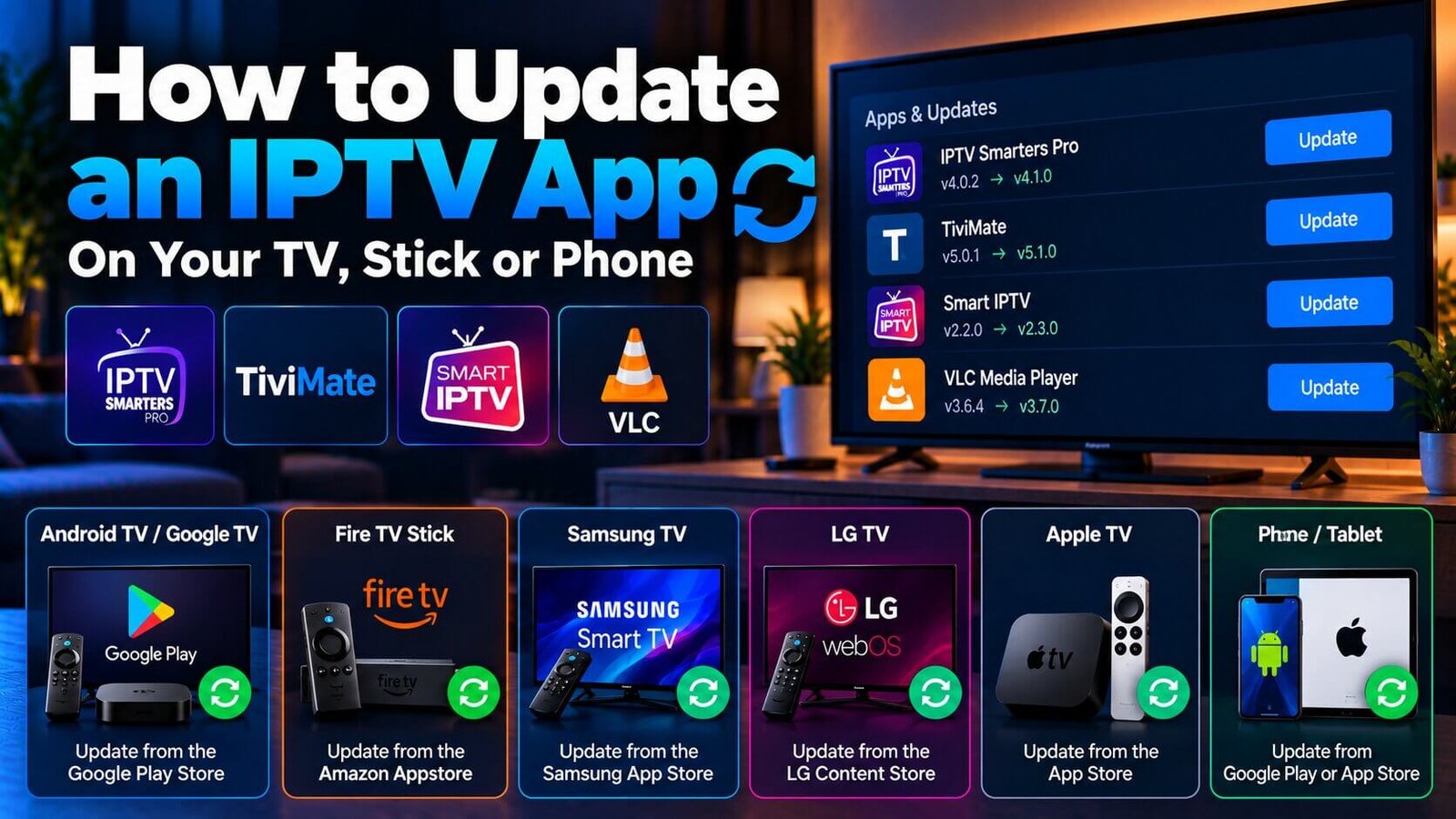
How to Update an IPTV App on Your TV, Stick or Phone
Keeping your player up to date is one of the simplest ways to avoid problems. How you update IPTV app software depends on where it came from: apps from an official store usually update through that store, while apps installed from a developer’s website need updating from the same place. This guide covers the main platforms, what to check before and after an update, and what to do if an app misbehaves afterwards.
Why keeping your IPTV app updated matters
Google’s Play Store help puts it simply: updating your apps to the latest version “gives you access to the latest features and improves app security and stability”. The same applies to IPTV players. Updates can fix bugs, keep an app working with newer device software and close security gaps.
An outdated player is also worth ruling out early when something stops working, which is why updating features in our IPTV troubleshooting checklist.
Before you update
- Keep your access details to hand. An update isn’t guaranteed to keep every setting, so make sure you have your server address, username and password, or your playlist link, somewhere safe. Our guide to IPTV account security covers storing them privately.
- Use the player’s backup option if it has one. Some players describe a backup and restore feature; check your app’s settings.
- Note where the app came from. A store app and an app installed from a developer’s website update in different ways.
Update IPTV app players from Google Play
On Android phones and tablets, Google’s help describes updating apps manually like this:
- Open the Google Play Store app.
- Tap the profile icon at the top right.
- Tap Manage apps and device.
- Under Updates available, tap See details, then update the app you want.
Google adds that you can update apps “one at a time, all together or automatically”. Automatic updates are set in the Play Store app under your profile picture, then Settings > Network preferences > Auto-update apps, where you can choose options such as updating over Wi-Fi only.
Android TV and Google TV
For Android TV, Google’s help says to open the Play Store on the TV, choose My Apps at the top and look under Updates available. Menus differ between Android TV and Google TV devices, so if your screen looks different, look for updates in the Play Store app on your TV. Our guide to IPTV on Android TV and Google TV covers installing players on these devices.
Updating apps on Apple TV
Apple’s Apple TV user guide says that, by default, apps are updated automatically when new versions are released. To check or change this, go to Settings, then Apps, and select Automatically Update Apps.
If automatic updates are off, Apple says you can select an app in the App Store to see whether an update is available and update it there. For choosing and setting up a player, see our Apple TV IPTV guide.
Updating apps on Fire TV
How a Fire TV app updates depends on how it was installed.
- Apps from the Amazon Appstore: Amazon’s developer documentation says Fire TV applies updates in the background when they don’t involve permission changes. When an update changes an app’s permissions, you may be asked to review and approve them.
- Apps installed from a developer’s website: these don’t update through the Appstore. Download the new version from the same official source you used to install it. Our guide to installing TiviMate on a Firestick shows one example of an official download route.
If you’re not sure whether your stick can install apps from outside the Appstore, our Firestick IPTV guide explains the difference between Fire OS and Vega OS.
Apps installed from outside an app store
A player installed as a file from its developer’s website won’t update itself through a store. To update it:
- Go back to the developer’s official website or download address.
- Download the latest version from there and install it.
- Switch off permission to install apps from that source again once you’re done, if you turned it on.
Avoid “newer” files from mirror sites, which may be altered. Our guide to installing IPTV APK files safely explains the precautions in detail.
After an update: what to check
- Login: open the app and confirm it still signs in. If it asks for your details again, re-enter them exactly as your provider sent them.
- TV guide: check that programme information still appears; it may need a moment to refresh.
- Playback: try a few channels, and on-demand content if you use it.
- Settings: check any preferences you rely on, such as your player engine, favourites or parental controls.
If an app stops working after an update
- Restart the device fully, not just from standby.
- Check your login. If sign-in fails, our guide to fixing IPTV login errors covers the usual causes.
- Check the guide. If programme information has gone, see our guide to fixing an IPTV EPG that isn’t working.
- Look for app-specific help. For IPTV Smarters, see our IPTV Smarters troubleshooting guide; for other apps, check the developer’s support pages.
- Work through the general checklist in our IPTV troubleshooting guide.
When reinstalling makes sense
Reinstalling is a reasonable step when an app keeps crashing after an update, won’t open at all, or other fixes haven’t helped. Before you do:
- make sure you have your access details, as you may need to enter them again;
- use the app’s backup option first, if it offers one;
- reinstall from the same official store or developer source.
Reinstalling can remove the app’s saved settings, so treat it as a later step rather than the first fix.
Frequently asked questions
Should I turn on automatic app updates?
For apps from an official store, it’s a sensible choice, as updates can bring fixes and security improvements. You can still check manually if something isn’t working.
Will updating an IPTV app delete my login?
An update isn’t guaranteed to keep every setting, so keep your access details to hand before updating. If the app asks you to log in again, re-enter them.
Why doesn’t my sideloaded IPTV app update automatically?
Apps installed from a developer’s website don’t update through an app store. Download the new version from the same official source.
What should I do if an app stops working after an update?
Restart the device, check your login and guide, then use the app’s support pages or our troubleshooting guides. Reinstalling is a later step.
How do I know if an update is available?
Check your device’s app store: in Google Play, look under Updates available; on Apple TV, open the app in the App Store. For apps from a developer’s website, check that website.
Still having trouble after an update?
If you’re an IPTV UK HQ customer and your player isn’t working properly after an update, contact our team with your device, app and what you’ve already tried.