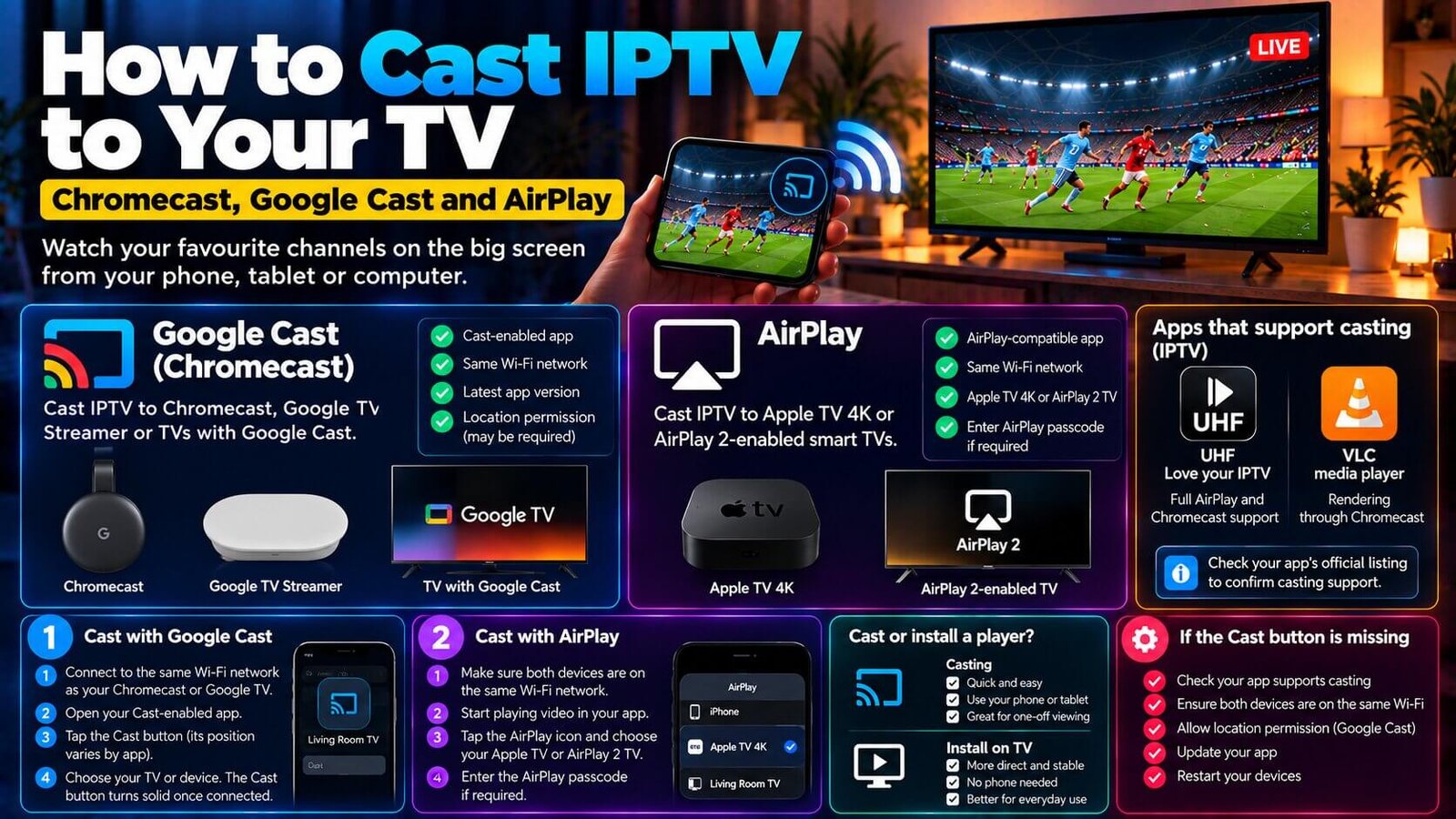
How to Cast IPTV to Your TV
If you already watch IPTV on a phone or tablet, casting lets you send what’s playing to a bigger screen. You can cast IPTV using Google Cast (for Chromecast, Google TV Streamer and TVs with Google Cast) or AirPlay (for Apple TV 4K and AirPlay 2-enabled TVs), but only if your player app supports it. This guide explains what each method needs, which players document casting, and what to check if the Cast or AirPlay option doesn’t appear.
What casting means
Casting sends video from one device, such as your phone, to a TV or streaming device on the same network. The app on your phone starts playback, and the TV displays it. This guide covers two casting systems:
| System | Sends to | Needs |
|---|---|---|
| Google Cast | Chromecast, Google TV Streamer, TVs with Google Cast | A Google Cast-enabled app and the same Wi-Fi network |
| AirPlay | Apple TV 4K, AirPlay 2-enabled smart TVs | A supported video app and the same Wi-Fi network |
The key point for IPTV: casting only works if your player app supports the system you want to use. Not every IPTV player does.
Casting with Google Cast
Google’s help describes these requirements and steps:
- Connect your phone, tablet or computer to the same Wi-Fi network as your Chromecast, Google TV Streamer or TV with Google Cast.
- Make sure you have the latest version of the Google Cast-enabled app.
- Open the app and tap the Cast button. Google notes that the Cast button isn’t in the same place in every app.
- Choose the device you want to cast to. Once connected, the Cast button turns solid.
Google also says some Cast-enabled apps ask for location permission and may not be able to cast if it isn’t granted. For Google TV, Google’s help confirms that your device and the Google TV must be on the same Wi-Fi.
Casting with AirPlay
According to Apple’s iPhone guide, an iPhone can stream video to an Apple TV 4K, or to a smart TV that supports AirPlay 2. Apple lists these steps:
- Make sure both devices are on the same Wi-Fi network.
- Start playing video in the Apple TV app or another supported video app.
- Bring up the playback controls, select the AirPlay icon, then pick your Apple TV 4K or AirPlay 2-enabled TV as the destination.
- If an AirPlay passcode appears on the TV, enter it on your iPhone.
As with Google Cast, your IPTV player needs to support AirPlay. For choosing and setting up a player on an iPhone or iPad in the first place, see our guide to IPTV on iPhone and iPad.
Which apps can cast IPTV?
Casting support varies between players, so check the app’s official listing. Two examples whose App Store listings describe casting:
| Player | What the official listing says |
|---|---|
| UHF – Love your IPTV | “full AirPlay and Chromecast support” |
| VLC media player (VideoLAN) | “rendering through Chromecast” |
If your player’s listing doesn’t mention Chromecast, Google Cast or AirPlay, don’t assume it can cast. On Android, our round-up of IPTV apps for Android phones and tablets notes that casting support differs between apps. For using VLC with IPTV links more generally, see our VLC IPTV guide.
Casting vs installing a player on the TV
If you only want the big screen occasionally, casting from your phone can be convenient. For everyday viewing, installing a player on the TV or a streaming device may suit you better, because the TV then plays the stream directly and you can use the TV remote.
- Android TV and Google TV devices: setting up IPTV on Android TV and Google TV
- Apple TV: setting up IPTV on Apple TV
- Samsung smart TVs: setting up IPTV on a Samsung TV
- LG smart TVs: setting up IPTV on an LG TV
Either way, a stable home network matters; see our guide to broadband speed for IPTV for the connection checks worth making.
If the Cast or AirPlay button is missing
- Check the app supports casting. Look for Chromecast, Google Cast or AirPlay in its official listing.
- Check the network. Both devices must be on the same Wi-Fi network. If your home has more than one network, make sure they’re on the same one.
- Update the app. Google asks for the latest version of the Cast-enabled app.
- Check permissions. Some Cast-enabled apps need location permission to cast.
- Look around the player screen. The Cast button’s position varies between apps; for AirPlay, tap the screen to show the controls first.
- Restart both devices and try again.
Frequently asked questions
Can I cast IPTV from my phone to my TV?
Yes, if your IPTV player supports Google Cast or AirPlay and your TV or streaming device can receive it on the same Wi-Fi network.
Why is there no Cast button in my IPTV app?
The app may not support casting, or your phone and TV may be on different networks. Google also notes the button’s position varies between apps.
Do I need Chromecast to cast IPTV?
For Google Cast, you need a Chromecast, Google TV Streamer or a TV with Google Cast. With AirPlay, you need an Apple TV 4K or an AirPlay 2-enabled TV instead.
Can I use AirPlay for IPTV?
Yes, if your IPTV player supports AirPlay. Apple describes playing video from “another supported video app” to an Apple TV 4K or AirPlay 2 TV.
Is casting better than installing an app on the TV?
It depends on how you watch. Casting suits occasional use; a player on the TV or a streaming device is often more convenient for everyday viewing.
Test IPTV on your own devices
Whether you cast from your phone or install a player on the TV, it’s worth testing on your own setup. Request a free 24-hour IPTV UK HQ trial and use our setup guides for your device.