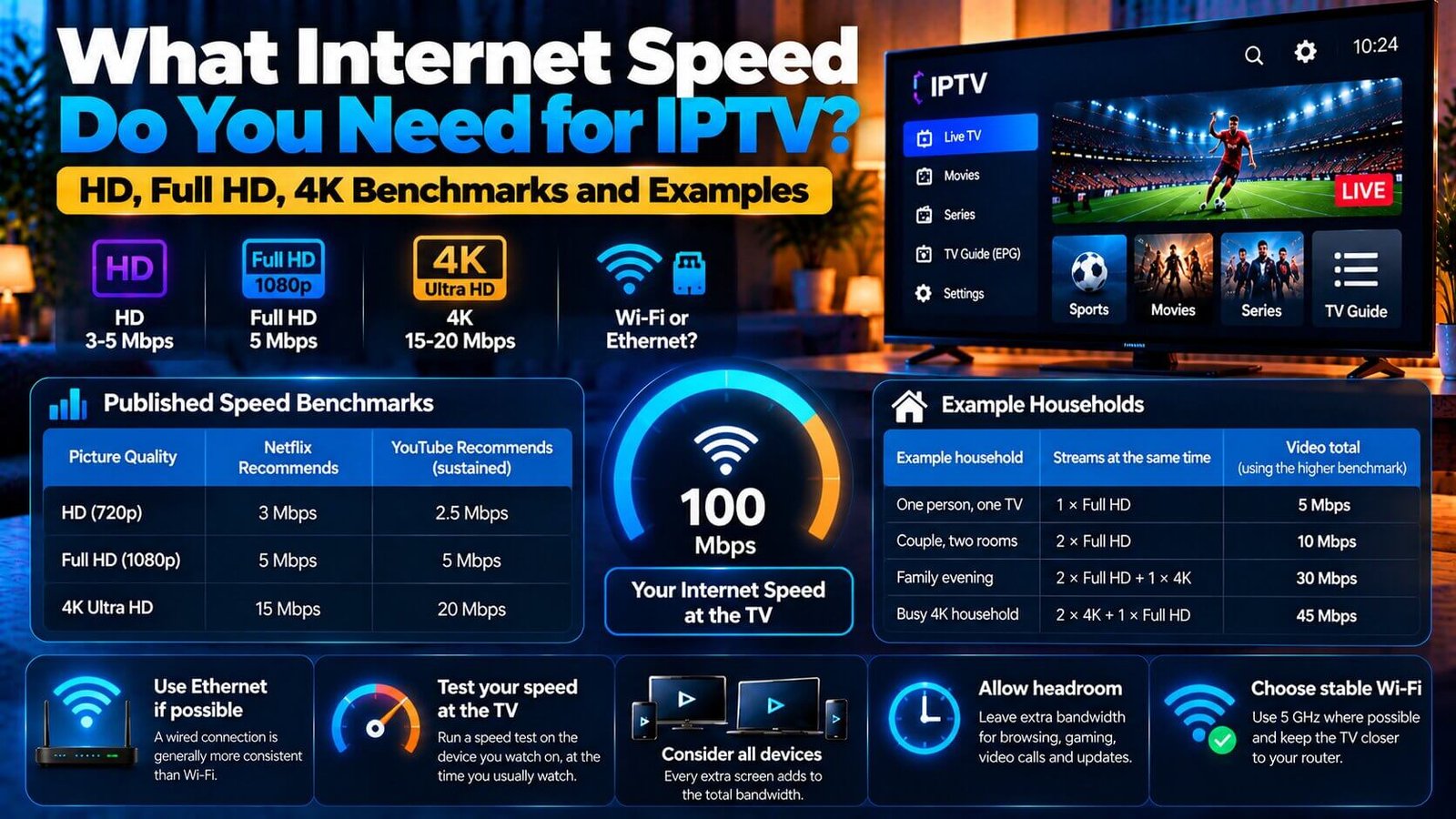
What Internet Speed Do You Need for IPTV?
The internet speed for IPTV that you need depends on three things: the picture quality you watch, how many screens stream at once, and how steady your connection stays at busy times. IPTV providers don’t publish a universal requirement, as bitrates depend on how each service prepares its channels, but the big streaming platforms do publish clear benchmarks. This guide uses those to help you work out a sensible figure for your home, test your connection properly and decide whether Wi-Fi is enough.
Published speed benchmarks by picture quality
Netflix and YouTube both publish the connection speeds they recommend for each level of picture quality. They aren’t IPTV figures, but they’re a reliable guide to how much bandwidth video at each resolution needs.
| Picture quality | Netflix recommends | YouTube recommends (sustained) |
|---|---|---|
| HD (720p) | 3 Mbps | 2.5 Mbps |
| Full HD (1080p) | 5 Mbps | 5 Mbps |
| 4K Ultra HD | 15 Mbps | 20 Mbps |
Two points from these sources are worth noting. YouTube describes its figures as the “recommended sustained speed”, in other words a rate your connection should hold continuously, not reach briefly. And the figures are per stream; every extra screen adds to the total.
Live IPTV channels can use a different amount of data from on-demand services, depending on how your provider encodes them, so treat these as a starting point rather than an exact requirement. (If you’re new to how channels reach you over broadband, our IPTV explainer covers the basics.)
Working out the internet speed for IPTV in your home
A practical way to plan is to use the higher of the two published figures for each stream, add them up for the most screens you’d realistically use at once, then allow headroom for everything else on the connection.
| Example household | Streams at the same time | Video total (using the higher benchmark) |
|---|---|---|
| One person, one TV | 1 × Full HD | 5 Mbps |
| Couple, two rooms | 2 × Full HD | 10 Mbps |
| Family evening | 2 × Full HD + 1 × 4K | 30 Mbps |
| Busy 4K household | 2 × 4K + 1 × Full HD | 45 Mbps |
Then add headroom for:
- phones and tablets browsing and updating in the background;
- video calls, online gaming and cloud backups;
- large downloads, such as game or system updates, which can take much of your bandwidth for hours.
If your measured speed at busy times comfortably exceeds your video total plus that headroom, your broadband is unlikely to be the bottleneck. If it’s close, stagger heavy downloads or choose HD rather than 4K on some screens. 4K has extra requirements beyond bandwidth, covered in our guide to 4K streaming.
Why steady speed matters more than peak speed
A broadband package’s headline speed tells you the maximum, not what reaches your TV at 8pm. For live TV, three things matter more:
- Consistency through the evening. Home networks and local connections are busiest in the evening, which is exactly when most people watch.
- The speed at the device, not the router. Wi-Fi loses speed through walls and over distance, so a TV two rooms away may receive a fraction of your package speed.
- Brief drops. A connection that averages well but drops for a few seconds causes the pauses people notice most. Players cope with small dips using their buffer; longer drops run it dry.
If you’re already seeing pauses and want to find the cause, our guide to IPTV buffering and freezing walks through the diagnosis.
How to test your speed properly
A single test on your phone next to the router tells you very little. For a result that reflects real viewing:
- Test on the device you watch on, or as close to it as possible. Many smart TVs, boxes and sticks can run a speed test app.
- Test at the time you usually watch, such as a weekday evening, not mid-morning.
- Repeat the test three or four times across the evening and note the lowest result, not the best.
- Test with the household as normal, so other devices are doing what they usually do.
- If you can, compare Wi-Fi with a cable on the same device. A big gap tells you the Wi-Fi is the weak link, not the broadband.
Compare your lowest evening result with the household total you worked out above.
Watching on mobile data
The same benchmarks apply when you watch on a phone or tablet away from Wi-Fi, but two extra factors come into play: mobile signal varies as you move, and video can use a lot of your data allowance. If you watch on the go, choose a lower quality in your player where it offers one, and check your mobile plan’s allowance before streaming live TV for long periods.
Wi-Fi or Ethernet?
Ethernet generally provides a more consistent local connection than Wi-Fi, because it avoids wireless interference, distance and many wall-related signal issues. It won’t fix congestion on your broadband line or problems at the provider’s end, but it’s worth using wherever the TV or box is within reach of the router.
| Ethernet | Wi-Fi | |
|---|---|---|
| Consistency | Very steady | Varies with distance, walls and interference |
| Convenience | Needs a cable or adapter | No cables |
| Best for | The main TV, 4K viewing, busy households | Rooms where cabling isn’t practical |
Many set-top boxes have an Ethernet port built in, which is one reason people choose them for the main TV; our guide to choosing a streaming box for IPTV covers the options. Streaming sticks don’t have an Ethernet socket, but many support an adapter. Amazon’s Fire TV specifications, for example, show adapter-based Ethernet rated at up to 100 Mbps on most current sticks, which is several times the published 4K figures above. Our guide to Firestick buffering covers stick-specific connection tips.
If Wi-Fi is your only option:
- connect on your router’s faster band where the device supports it;
- keep the router out in the open and raised, not in a cupboard;
- use a mesh system or powerline adapters for distant rooms.
For the rest of what a working setup needs, including devices and apps, see our IPTV streaming checklist.
Frequently asked questions
Is 10 Mbps enough for IPTV?
For one Full HD stream, a stable 10 Mbps connection may be enough for many streams, but it leaves limited headroom, and it gets tight with two or more screens. For 4K, 10 Mbps is below the 15–20 Mbps reference benchmarks used in this guide, so it isn’t a speed we’d recommend planning around.
How much speed do I need for 4K IPTV?
Netflix publishes a 15 Mbps recommendation for 4K, and YouTube gives 20 Mbps as a sustained reference for 4K in its guidance. IPTV bitrates vary, so treat these as planning references rather than guaranteed requirements, and allow extra headroom for other devices using the connection.
Does upload speed matter for IPTV?
Watching TV mainly uses download speed. Upload speed matters more for video calls and backups running at the same time.
Why is my speed test fast but IPTV still slow?
The test may have run on a different device, at a quiet time or over a short burst. Test on the watching device in the evening, several times, and note the lowest result.
Will faster broadband fix buffering?
Only if the broadband is the bottleneck. If the speed at the device is low because of Wi-Fi, or the device itself struggles, a faster package may not help.
Test your connection with a real stream
The best way to know whether your broadband is up to it is to watch on your own network at the time you normally would. Request a free 24-hour trial and try it on your main TV.