How to Set Up IPTV on a MAG Box
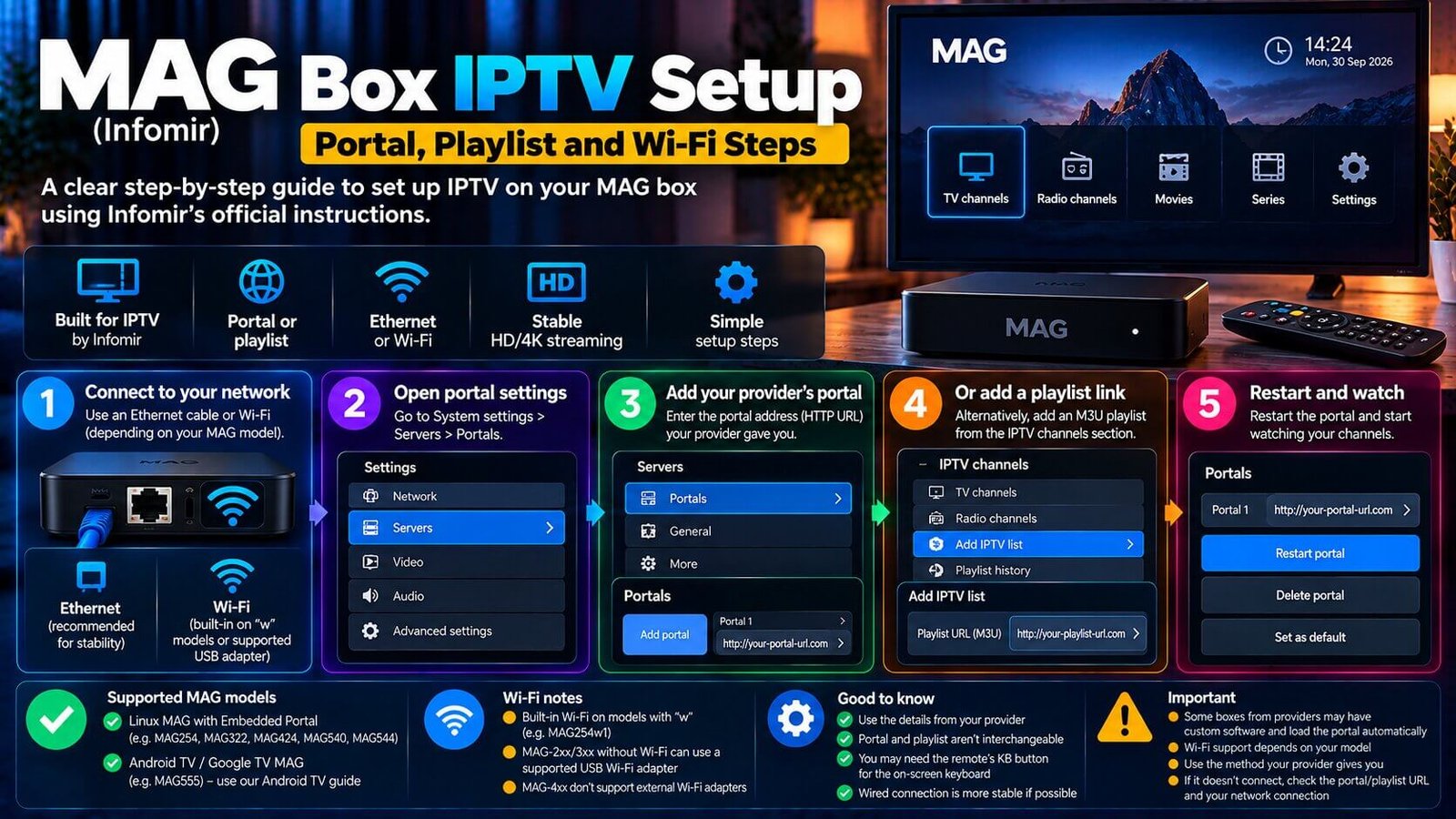
MAG set-top boxes, made by Infomir, are built for IPTV and connect to a provider’s service through a portal or a playlist. MAG box IPTV setup usually takes three steps: connect the box to your network, enter the portal address or playlist link your provider supplies, and restart the portal. This guide follows Infomir’s own documentation for each step and is clear about which MAG models and interfaces it covers.
Which MAG boxes this guide covers
Infomir says its MAG devices run either Linux or Android TV. The steps depend on which you have:
- Linux MAG boxes with Infomir’s Embedded Portal interface. This guide follows Infomir’s documentation for this interface, published in its wiki’s “STB Linux & WebKit” section. Infomir’s FAQ also gives the same portal settings route for the current MAG540 and MAG544.
- Android TV and Google TV MAG models, such as the MAG555, which Infomir lists with Google TV. These work like other Google TV devices, so use our guide to IPTV on Android TV and Google TV instead.
One more exception: Infomir notes that an operator can supply boxes with custom software that loads its portal automatically and can block access to the Embedded Portal. If your box came from a provider with its own software, follow that provider’s instructions.
Still choosing a box? Our guide to the best IPTV box compares MAG with other options.
Before you start: what MAG box IPTV setup needs
Ask your provider which access method they support for MAG boxes and what details to enter. According to Infomir’s documentation, the two usual routes on the Embedded Portal are:
| Route | What you enter | Where |
|---|---|---|
| External portal | A portal address (an HTTP URL); some portals then ask for a login and password from the operator | System settings > Servers > Portals |
| Playlist | The web address of an M3U playlist | IPTV channels > Add IPTV list |
Use the method and details your provider gives you for your box. Portal and playlist access aren’t automatically interchangeable, and our explainer on IPTV servers, lines and portals covers what each term means. If your provider asks for details from the box itself, such as its MAC address, ask them where to find it on your model.
You’ll also need the remote. Infomir’s instructions use its KB button to bring up the on-screen keyboard.
Step 1: Connect the box to your network
Infomir’s documentation describes two ways to connect: a network (Ethernet) cable, or Wi-Fi. Wi-Fi support depends on the model:
- Built-in Wi-Fi is shown by a “w” after the model number, such as MAG254w1 or MAG349w3. The number after the “w” indicates the Wi-Fi standard.
- MAG-2xx and MAG-3xx models without built-in Wi-Fi can use an external USB Wi-Fi adapter, but only adapters on Infomir’s supported list.
- MAG-4xx models don’t support external Wi-Fi adapters, according to Infomir, so on those only the built-in Wi-Fi versions can connect wirelessly.
If your Wi-Fi signal is weak where the box sits, a wired connection is worth considering.
Step 2: Add your provider’s portal
Infomir’s instructions for adding a portal on the Embedded Portal are:
- Open System settings > Servers > Portals.
- Press KB on the remote to open the on-screen keyboard, and type a name in Portal 1 name. Don’t press Enter yet.
- Press KB to close the keyboard, then move down to Portal 1 URL.
- Open the keyboard again and type the portal address exactly as your provider gave it.
- Press Enter on the keyboard to save. If the value isn’t valid, the box shows a warning when you try to save.
- Press Exit, then choose System settings > Restart Portal.
After the restart, the portal you added should load automatically. If the portal asks you to sign in, enter the login and password your provider supplied.
By default you can store one or two portals here. Infomir also documents a Multiportal mode, reached through More in the same screen, which stores up to eight portals and lets you choose which one loads at start-up.
Alternative: add a playlist link
If your provider supplies an M3U playlist instead, Infomir says MAG boxes can import one into the IPTV channels list:
- Open IPTV channels and press Menu on the remote to open the Operations window.
- Choose Add IPTV list.
- Set File Encoding; Infomir notes that UTF-8 is usually used for M3U lists.
- Enter the playlist address in the URL field and press Save (OK).
Infomir’s documentation covers M3U playlists and says models from the 4xx series onwards can support additional playlist formats. For more on playlist links, see our M3U playlist guide.
If it doesn’t connect
Infomir documents a few specific problems and fixes:
- A playlist doesn’t load. Infomir lists these possible reasons: the address is incorrect, there’s no connection to the server, the file wasn’t found, or the file is in the wrong format. Check the address character by character first.
- A MAG540 or MAG544 says the portal is outdated. Infomir’s FAQ says the best fix is for the provider to update its portal. Meanwhile, the latest firmware for these models has a Compatible model option under Settings > System settings > Servers > Portals: choose the newest model listed (MAG420) first, then an earlier one (MAG322) if the message continues.
- The portal loads but channels have problems. Infomir says that for issues with the portal’s operation or content you should contact your service provider, as Infomir doesn’t supply content.
If the portal refuses your login, our guide to fixing IPTV login errors covers the usual causes. If channels play but the programme guide is empty, see our guide to IPTV EPG.
Frequently asked questions
Where do I enter the portal URL on a MAG box?
On the Embedded Portal interface, Infomir’s documentation puts it under System settings > Servers > Portals, in the Portal 1 URL field.
Can a MAG box play an M3U playlist?
Yes. Infomir says MAG boxes can import an M3U playlist from a web address through Add IPTV list in the IPTV channels menu.
How do I know if my MAG box has Wi-Fi?
Check the model number. Infomir marks models with built-in Wi-Fi with a “w”, such as MAG254w1. Some models without it can use a supported USB adapter.
How many portals can a MAG box store?
One or two in the normal portal settings. With Multiportal mode turned on, Infomir says the box can store up to eight.
Do these steps work on every MAG box?
No. They follow Infomir’s documentation for Linux boxes with the Embedded Portal. Android TV and Google TV MAG models, and boxes with operator software, work differently.
Ready to add a service to your MAG box?
Once your box is on your network, the last step is access details that work with your model. IPTV UK HQ offers a free 24-hour trial; when you request it, check with us which access method we can provide for your MAG box.