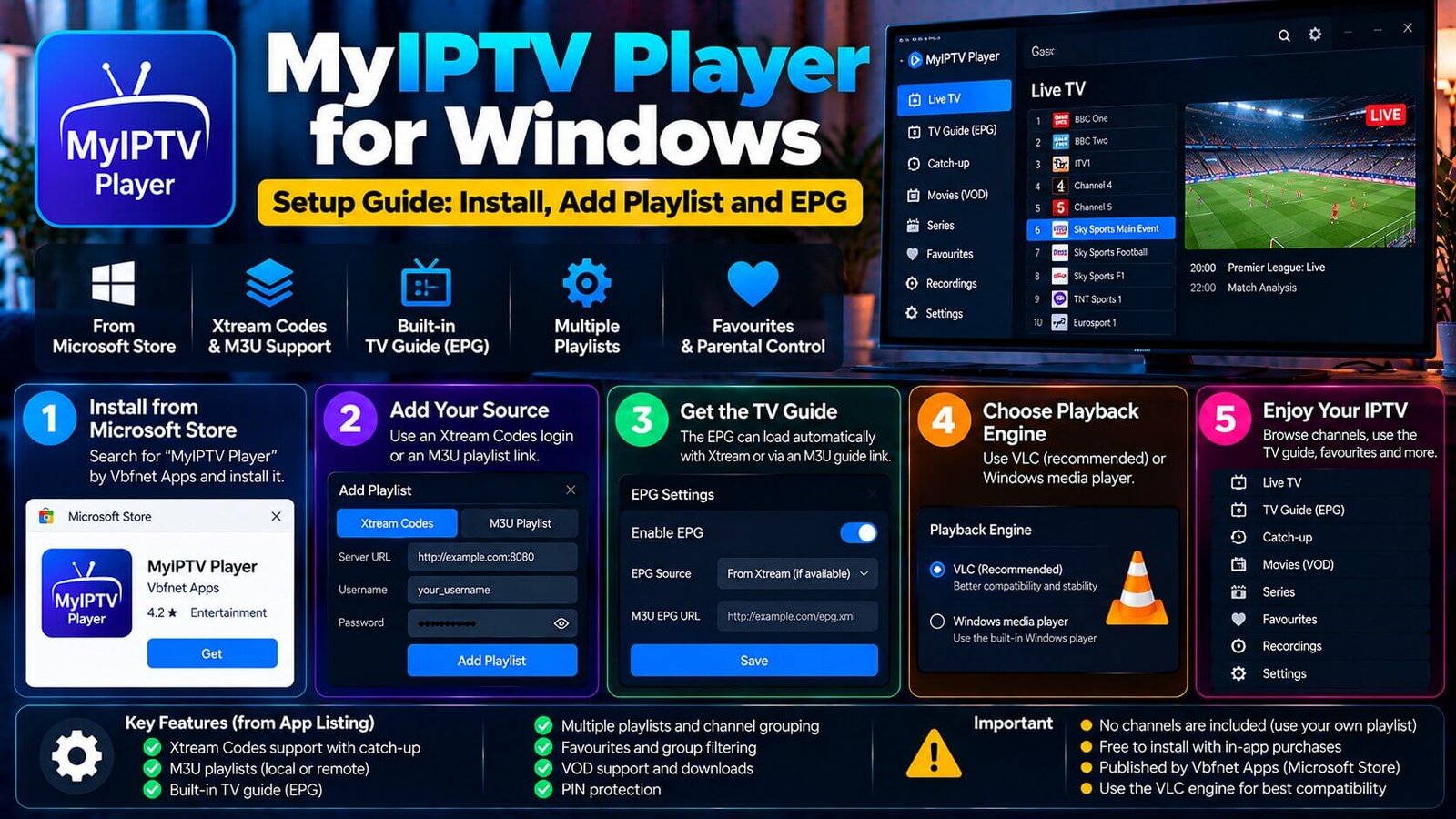
MyIPTV Player for Windows: Setup Guide
MyIPTV Player is a Windows IPTV app from publisher Vbfnet Apps, installed from the Microsoft Store. According to its Store listing, it plays IPTV channels with a built-in programme guide and accepts either an Xtream login or an M3U playlist. This guide covers installing it, adding your login, getting the TV guide working, and the settings worth knowing about, including its choice of playback engine.
What MyIPTV Player is
The app’s Microsoft Store listing is published by Vbfnet Apps. It’s listed as free, with in-app purchases, and its system information names Windows 10. The listing’s disclaimer is clear: “No IPTV channels or streaming URLs are provided”, and the publisher says it isn’t affiliated with any IPTV provider.
The listing highlights these features:
- Xtream Code support with catch-up;
- M3U playlists from local storage or a remote source, and multiple playlists;
- HTTP Live Streaming (HLS) and MPEG-TS support;
- a built-in EPG;
- automatic channel grouping, group filtering and favourites;
- downloads of on-demand (VOD) streams;
- PIN protection;
- a choice of playback engine using the VLC library or Windows media player.
If you’re still deciding which Windows player to use, see our Windows IPTV player comparison.
Installing MyIPTV Player
- Open the Microsoft Store app on your PC. If you can’t find it, search for “Microsoft Store” from the Start menu.
- Search for MyIPTV Player.
- Check the publisher shown is Vbfnet Apps.
- Select Get or Install, then open the app from the Start menu.
Installing from the Store means updates arrive through the Store too. Avoid copies of the app from other websites, which may be out of date or altered.
Before you add a source
Have your provider’s details open in another window so you can copy and paste them. If you plan to use more than one playlist, which the listing says is supported, give each a clear name so you can tell them apart later.
Adding your Xtream login or M3U playlist
The listing says you can use an “Xtream code or load your m3u playlist from storage or remote source”. Choose whichever matches the details your provider sent you:
| Your provider sent | What to add in MyIPTV Player |
|---|---|
| Server URL, username and password | An Xtream login, entering the three details exactly |
| A long playlist link | A remote M3U playlist, pasting the full link |
| A playlist file | A local M3U playlist from your PC’s storage |
Copy and paste the details from your provider’s email to avoid typing mistakes. Menu wording can change between versions, so look for the option to add a playlist or channel source in the app’s settings. Our guides to Xtream Codes logins and M3U playlists explain the two formats.
The listing also mentions an option to add channels manually in the app’s settings, which can be handy for a single stream address.
Getting the TV guide working
MyIPTV Player lists “EPG support built-in”. Whether the guide fills in depends on the guide data your provider supplies:
- With an Xtream login, guide data supplied through the service can load with your channels.
- With an M3U playlist, you may need a separate EPG address from your provider.
- The first guide download can take a little while on a large channel list.
For how guide addresses work, see how to add an EPG to IPTV. If the guide is blank or wrong, our EPG troubleshooting guide goes through the causes.
Features worth setting up
- Filter out unwanted groups. The listing mentions filtering channel groups, which keeps a long list manageable.
- Favourites. Save the channels you watch most.
- PIN protection. Useful on a shared family PC.
- Catch-up. Available with Xtream logins, per the listing, where your provider offers catch-up for a channel.
- VOD downloads. The listing mentions downloading on-demand streams, with a download centre and history.
Choosing the playback engine
One of the app’s more unusual features is its “media player option which could use VLC library for media playback or Windows media player”.
- If a channel stutters, shows a black screen or has no sound with one engine, switch to the other and test again.
- Keep whichever works best on your PC for most channels.
If playback problems affect every app and device, the cause is more likely your connection; see IPTV buffering and freezing. For more on VLC itself, see our guide to watching IPTV with VLC.
If something isn’t working
| Problem | What to check |
|---|---|
| Can’t find the app | Search the Microsoft Store for “MyIPTV Player” and check the publisher |
| Login rejected | Server URL format and exact details; see IPTV login errors |
| Playlist won’t load | The full link was pasted; see IPTV playlist not loading |
| Some channels won’t play | Switch the playback engine; try the channel on another device |
| Guide is empty | Add or refresh the EPG source |
Frequently asked questions
Who makes MyIPTV Player?
The Microsoft Store listing names Vbfnet Apps as the publisher. Check the publisher before installing, as similarly named apps exist.
Is MyIPTV Player free?
It costs nothing to download, according to the Microsoft Store, though the listing shows optional in-app purchases. The listing is the place to see what those add.
Does MyIPTV Player support Xtream Codes?
Yes. Its listing mentions Xtream Code support with catch-up, as well as M3U playlists.
Why does MyIPTV Player let me choose between VLC and Windows media player?
Different playback engines handle some streams differently. Switching is a quick way to test whether a playback problem is engine-related.
Does MyIPTV Player include channels?
No. The listing states that no IPTV channels or streaming URLs are provided. You add your own login or playlist.
Add a playlist to MyIPTV Player
Once the app is installed, request a free 24-hour trial and add the login to MyIPTV Player to see how it works on your PC.