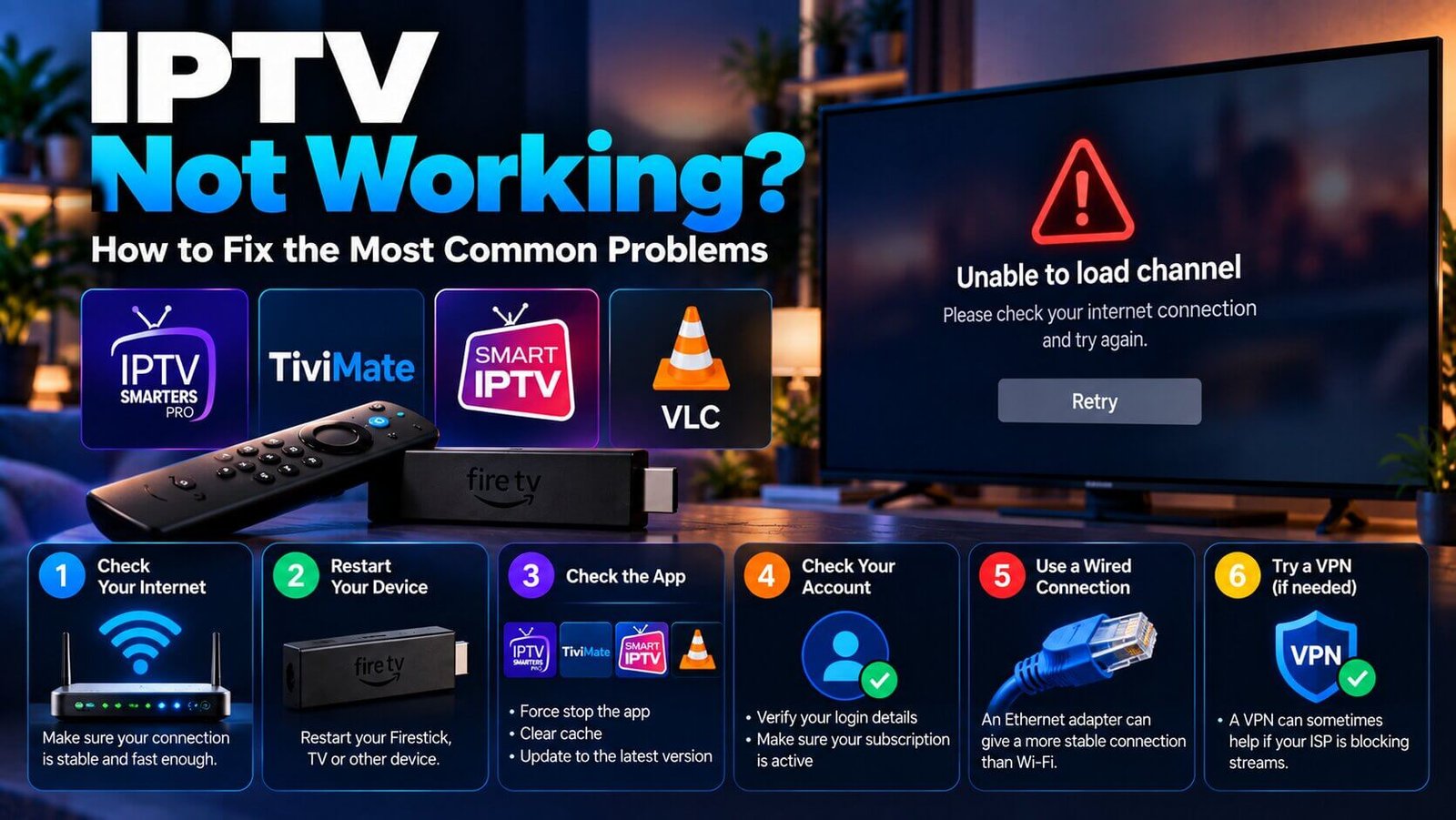
IPTV Not Working? How to Fix the Most Common Problems
IPTV not working? The cause is almost always in one of four places: your internet connection, the app, the device or the service itself. The quickest fix comes from narrowing down which one, rather than reinstalling everything straight away. Start with the symptom table below, run the two-minute checks, then work down the list until the problem is solved.
Quick diagnosis: why is your IPTV not working?
The symptom tells you a lot about where to look first:
| What you see | Most likely cause | Start here |
|---|---|---|
| Nothing loads at all, on any channel | Internet connection, expired subscription or login problem | Basic checks, then account checks |
| Some channels play, others don’t | Individual streams unavailable at the moment, or a playlist that needs refreshing | Reload the playlist; see specific problems |
| Picture keeps pausing or stuttering | Connection speed or Wi-Fi signal | Network checks and our buffering guides |
| The app crashes or freezes | App cache, outdated version or low device memory | App checks |
| “Invalid login” or “authentication failed” | Mistyped details, expired account or wrong server address | Account checks |
| Channels play but the TV guide is empty | EPG not loaded or not refreshed | Refresh the guide in the app’s settings |
Two-minute basic checks
These solve a surprising number of cases, so do them before anything more involved:
- Check whether it’s everything or one channel. Try three or four channels from different groups. If only one fails, the problem is almost certainly that stream, not your setup.
- Close the app completely and reopen it. Pressing Back or Home often leaves an app running in the background, so fully close it (see app checks for how on each device).
- Restart the device. Unplug it from the mains for 30 seconds if there’s no restart option. This clears temporary glitches that no setting will fix.
- Test your internet on something else. Open a different streaming app or a website on the same device. If that’s slow too, the issue is your connection, not IPTV.
- Check the date and time on your device. An incorrect clock can break secure connections and TV guide data.
Network checks
Live TV is less forgiving than on-demand video, because there’s little time to build up a buffer. If the basic checks point to your connection:
- Restart your router. Switch it off at the wall, wait 30 seconds and switch it back on. Give it a few minutes to reconnect fully.
- Get closer to the router, or use a cable. Walls, floors and distance weaken Wi-Fi quickly. If your device has an Ethernet port, a wired connection is the single most reliable fix.
- Check what else is using the connection. Large downloads, game updates, cloud backups and several people streaming at once all compete for bandwidth.
- Try switching a VPN off, or on. A VPN adds an extra step to every connection and can slow streams down or stop them connecting. If you normally use one, test without it; if you don’t, leave this step out.
- Try a different network. A quick test on a phone hotspot tells you whether the problem follows the device or stays with your home network.
If the picture plays but keeps stopping, see our guide to IPTV buffering and freezing on any device, or the dedicated guide to Firestick buffering if you use a Fire TV Stick.
App checks: force stop, cache and updates
If your connection is fine but you still have IPTV not working properly, the app is the next suspect. Work through these in order:
1. Force the app to close
- Fire TV: Settings > Applications > Manage Installed Applications, choose the app, then Force Stop.
- Google TV and Android TV: Settings > Apps, choose the app, then Force stop.
- Apple TV: press the TV button twice quickly, highlight the app and swipe up on the clickpad.
- Phones and tablets: open the app switcher and swipe the app away.
2. Clear the app’s cache
The cache holds temporary data such as channel logos and guide information. If it becomes corrupted, the app can freeze or show old data. Clearing it is safe: Google notes that clearing your app cache only removes temporary data and you’ll remain signed in. On Fire TV, choose the app under Manage Installed Applications and select Clear Cache. On Google TV, you can clear cached data from Settings > System > Storage.
Be careful with Clear Data (or Clear Storage). It resets the app completely, including your login, playlists and favourites. Only use it if clearing the cache hasn’t helped, and make sure you have your login details to hand first.
3. Update or reinstall the app
Outdated versions can stop working when a service changes something on its side. Update from the same official source you installed from. If an update doesn’t help, uninstall, restart the device and reinstall a fresh copy, again from the official source only.
4. Try a different player
Many IPTV apps let you switch between a built-in player and an external one in their settings. If one player shows a black screen or no sound, the other may play the same channel fine. That’s a quick way to tell a playback problem from a service problem.
Device checks
- Free up storage. Streaming sticks in particular have limited space. When storage is nearly full, apps crash or refuse to update. Uninstall apps you no longer use.
- Install system updates. Check your device’s settings for software updates. Google, for example, recommends checking for system and app updates when a Google TV device is slow or apps crash.
- Let it cool down. A stick tucked tightly behind a TV can overheat and slow down. An HDMI extender gives it more space.
- Check the power supply. Use the power adapter supplied with your stick rather than a TV’s USB port, which may not provide enough power.
If you’re setting up a Fire TV Stick for the first time, our guide to setting up IPTV on a Firestick also explains why some newer sticks can’t install IPTV players at all.
Account and service checks
If everything on your side checks out, look at the account and the service:
- Is your subscription still active? An expired plan or trial is one of the most common reasons IPTV suddenly stops working on every channel at once.
- Are your login details exactly right? Re-enter the server URL, username and password carefully: include
http://orhttps://and the port number, and watch for capital letters and extra spaces. - Are you within your connection limit? Many services limit how many devices can stream at the same time on one account. Stop playback on other devices and try again.
- Is the service having a problem? If several of your devices fail at the same moment, and other apps work fine, the issue may be on the provider’s side. Check with them before changing your setup.
Login errors have their own causes and fixes, covered in our guide to fixing IPTV login problems.
Fixes for specific problems
This checklist covers the general case. Some problems need more focused steps:
- The playlist won’t load or channels disappear: reload or refresh the playlist in the app’s settings, and if you use an M3U link, check it was pasted in full with nothing cut off at the end. If that doesn’t help, see what to do when a playlist won’t load.
- Black screen with or without sound: switch between the app’s built-in and external player, or change the video decoder setting if your player offers one, then try the channel again. Our black screen troubleshooting guide goes further.
- Problems in a particular app: our guides cover IPTV Smarters problems and IPTV error codes.
- Still getting set up: if you haven’t finished installing your player, the device setup guides are the best place to start.
When to contact support
If you’ve worked through the checks above and still find your IPTV not working, it’s time to get help. You’ll get a faster answer if you include:
- The device you’re using (for example, Fire TV Stick 4K Max or Samsung TV) and the app name.
- What happens: an error message word for word, a black screen, buffering, or a crash.
- Whether it affects every channel or only some, and when it started.
- What you’ve already tried from this guide.
IPTV UK HQ customers can contact our team with those details, and our FAQ answers the most common account questions. Never share your login details in public forums or comments.
Frequently asked questions
Why has my IPTV suddenly stopped working?
When every channel stops at once, the usual causes are an internet outage, an expired subscription or a problem on the provider’s side. Check your connection with another app first, then check your account.
Why do some channels work and others don’t?
Individual streams can be temporarily unavailable even when the rest of the service is fine. Reloading the playlist or refreshing the channel list often helps; if the same channel stays down, report it to your provider.
Will clearing the cache delete my login?
No. Clearing the cache only removes temporary files. Clearing data or storage is different: it resets the app, including your login and favourites.
Should I reinstall the app straight away?
Usually not. Restarting, force-stopping and clearing the cache solve most app problems without losing your settings. Reinstall only if those steps fail, and always from the official source.
Can a VPN stop IPTV working?
It can. A VPN adds an extra connection step that can slow down or block streams. Testing with the VPN switched off is a quick way to rule it out.
Still stuck?
Go back through the device setup for your TV or stick, or get in touch with the details listed above and we’ll help you narrow it down.