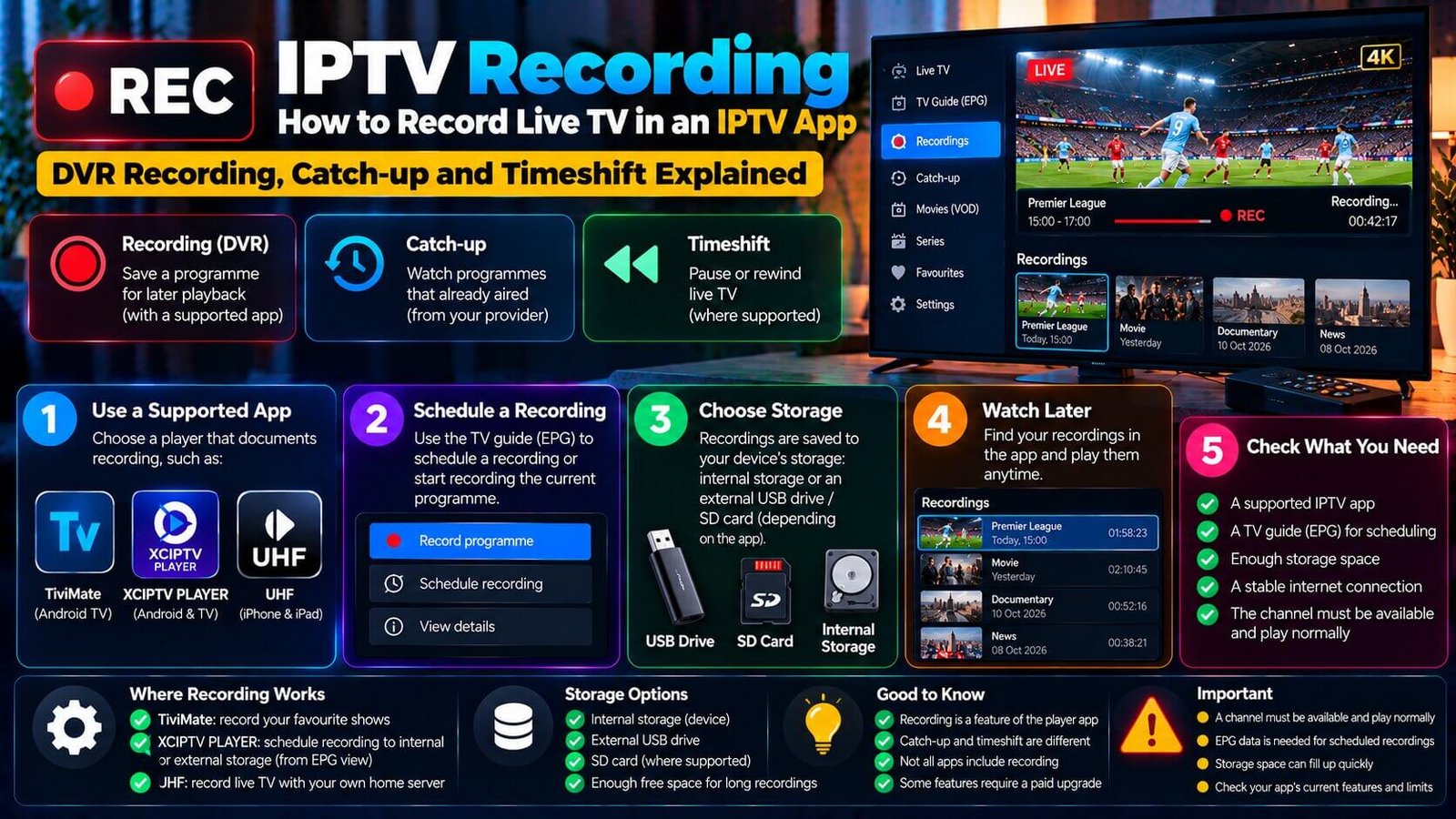
IPTV Recording: How to Record Live TV in an IPTV App
IPTV recording means saving a programme from a live channel so you can watch it later, much like a traditional DVR. Whether you can record IPTV depends mainly on your player app: some document a recording feature, others don’t mention one, and the details differ between those that do. This guide explains what recording is, how it differs from catch-up and timeshift, which players describe recording in their official listings, and what to check before relying on it.
Can you record IPTV?
Sometimes. Recording is a feature of the player app, so the first thing to check is whether your player offers it. If it does, the app saves the programme while it’s being streamed, so you can play it back later.
Three things usually shape whether IPTV recording works for you:
- Your player: recording isn’t a standard feature of every IPTV app.
- Your device: recordings need somewhere to be stored.
- The stream: the channel needs to play normally for the app to record it.
Recording vs catch-up vs timeshift
These features are often confused, but they work differently:
| Feature | What it does | Who provides it |
|---|---|---|
| Recording (DVR) | Saves a programme for later playback | Your player app, where it supports recording |
| Catch-up | Plays programmes that have already aired from an archive | The stream source, where it’s offered, plus a player that supports it |
| Timeshift | Pauses or rewinds the live channel you’re watching | The player and stream, where supported |
The practical difference: with recording, you decide in advance what to save. With catch-up, you rely on the provider keeping past programmes available. Our guide to how IPTV catch up works explains catch-up and timeshift in more detail.
IPTV players that document recording
These players describe recording in their official listings or on their developer’s website. The wording differs, so each is quoted rather than assumed to work the same way.
| Player | What the official source says | Platform |
|---|---|---|
| TiviMate | “Record your favorite shows to watch later” | Android TV devices (Google Play; TiviMate website) |
| XCIPTV PLAYER | “Schedule Recording to internal or external storage (DVR)”; “Schedule Recording from EPG View” | Android phones, tablets and TVs (Google Play) |
| UHF | “Record live TV with your own home server”, using its UHF Server companion app | App Store |
Other players may also record, but if a feature isn’t described in a player’s official information, don’t assume it’s there. For more on these apps, see our guides to TiviMate and XCIPTV Player. UHF is one of the players mentioned in our guide to IPTV on iPhone and iPad.
Some players sell extra features through a paid upgrade. TiviMate, for example, has a Premium tier, covered in our TiviMate Premium guide. Check your player’s current details to see whether any feature you want, including recording, is part of the free version.
Where recordings are stored
Where your recordings go depends on the player:
- XCIPTV PLAYER says it can record to internal or external storage.
- UHF describes recording through a free companion app, UHF Server, which it says runs on a Mac, Windows or Linux computer on your local network.
- Other players: check the app’s settings or help pages for where recordings are saved.
Recordings take up space, and some streaming sticks and boxes have limited built-in storage. If you plan to record regularly, check how much free space your device has, and whether your player supports external storage. Our guide to choosing a streaming box for IPTV covers hardware options.
Scheduling recordings from the TV guide
Some players let you set a recording from the electronic programme guide (EPG), so you can choose a programme before it starts:
- XCIPTV PLAYER’s listing includes “Schedule Recording from EPG View” and “Program Reminder from EPG View”.
- UHF says you can “schedule recordings straight from your phone” using its server app.
Scheduling from the guide depends on the guide data being correct for that channel. If programmes are missing or in the wrong place, our guide to adding an EPG to IPTV explains how guide data reaches your player.
What to check before relying on IPTV recording
- Player support: confirm your player describes a recording feature.
- Paid features: check whether recording is included in the version you use.
- Storage: make sure there’s enough free space where recordings are saved.
- Guide data: if you schedule from the guide, check the programme times look right.
- A test recording: record a short programme and play it back before relying on the feature for something important.
If a recording fails
- Nothing was saved: check free storage, and that any external drive is still connected.
- The recording is the wrong programme or cut short: check the guide times for that channel.
- The recording is empty or won’t play: check whether the channel plays normally live; if it doesn’t, the problem is with the stream rather than the recording.
- A home-server setup didn’t record: for UHF, check that the computer running the server was on and connected.
- Still not working: check the player’s support pages, or our IPTV troubleshooting checklist if channels won’t play at all.
Frequently asked questions
Can every IPTV app record?
No. Recording is a player feature, and not every app describes one. Check your player’s official listing or website.
Is recording the same as catch-up?
No. Recording saves a programme you choose in advance. Catch-up plays past programmes from an archive kept by the stream source, where it’s offered.
Where are IPTV recordings saved?
It depends on the player. XCIPTV PLAYER describes internal or external storage, while UHF records through a server app on a computer.
Can I schedule a recording from the TV guide?
In some players. XCIPTV PLAYER’s listing describes scheduling a recording from the guide view, and UHF describes scheduling from your phone.
Why did my IPTV recording fail?
Common checks are storage space, guide times and whether the channel plays live. For server-based recording, check that the server was running.
Test your player on your own setup
Recording features depend on the player you use. Request a free 24-hour IPTV UK HQ trial to see how your chosen player and device work together, and use our setup guides to get started.