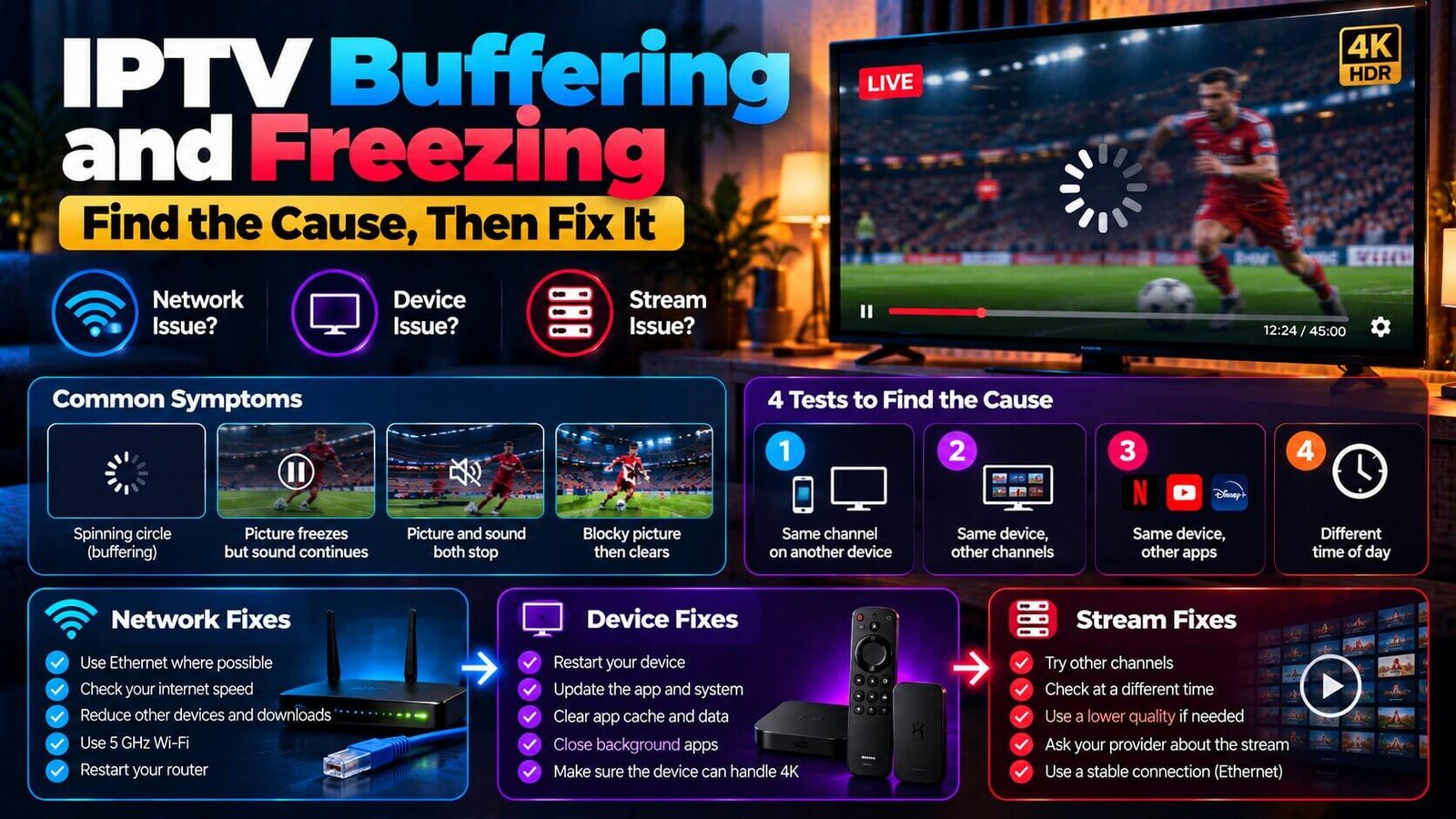
IPTV Buffering and Freezing: Causes and Fixes on Any Device
IPTV buffering has three possible sources: your home network, the device you’re watching on, or the stream itself. The fixes are completely different for each, so the quickest route is to find out which one you’re dealing with before changing anything. This guide gives you four short tests to pin down the cause, then the fixes for each, with quick steps for Android TV, Apple TV, smart TVs, phones and computers.
Buffering vs freezing: what you’re seeing
People use the words interchangeably, but they point to slightly different problems:
| Symptom | What’s happening | Most common cause |
|---|---|---|
| Spinning circle, then playback resumes | The player ran out of video and is waiting for more | Data isn’t arriving fast or steadily enough |
| Picture freezes but sound carries on | The device is struggling to decode the video | Device performance or an unsupported format |
| Picture and sound both stop, then jump ahead | Data stopped arriving for a moment | A Wi-Fi dropout or a problem with the stream |
| Blocky picture that then clears | Quality briefly dropped to keep playing | The connection is close to its limit |
If nothing plays at all, rather than stopping and starting, that’s a different problem; start with our IPTV troubleshooting checklist instead.
Four tests to find the cause of IPTV buffering
Each test takes a minute or two. Note the result of each before moving on.
- Another device, same channel. Play the same channel on a phone or a second TV on the same network. If it plays smoothly there, the first device is the likely cause.
- Same device, other channels. If only one or two channels buffer while the rest are fine, the problem is probably with those streams rather than your setup.
- Same device, other apps. Try another streaming service. If everything buffers, your network is the prime suspect.
- Different time of day. If buffering only happens in the evening, it points to congestion, either on your home network or further along the line.
| Result | Likely cause | Go to |
|---|---|---|
| Everything buffers on every device | Home network or broadband | Network fixes |
| Only one device buffers | That device or its app | Device fixes |
| Only certain channels buffer, on every device | Those streams | Stream fixes |
| Only in the evening | Congestion | Network fixes, then stream fixes |
If it’s your network
Live TV needs a steady flow of data, not just a high peak speed. Netflix’s published guidance, 5 Mbps for Full HD and 15 Mbps for 4K, is a useful yardstick; a live channel needs that rate continuously, on top of whatever else the household is doing online.
- Test speed on the watching device, at the time you usually watch. A test on a phone next to the router tells you little about the TV two rooms away.
- Use a cable where you can (our IPTV streaming checklist compares wired and wireless setups). Ethernet removes Wi-Fi interference and distance from the equation, making it one of the most useful tests when diagnosing buffering.
- Improve the Wi-Fi path. Move the router out of cupboards, use the faster band your router offers, or add a mesh system or powerline adapters for distant rooms.
- Pause heavy users. Game downloads, cloud backups and several simultaneous streams all share the same connection.
- Restart the router if it has been running for weeks; it clears its memory and often recovers lost speed.
- Test without a VPN if you use one, as it can add delay and route traffic through a busy server.
For the numbers in more detail, see our guide to the internet speed you need for IPTV.
If it’s your device
When one device buffers and others don’t, the usual culprits are memory, storage, heat or the app itself.
- Restart the device fully, not just from standby, to clear its memory.
- Close apps running in the background, particularly on streaming sticks and older smart TVs.
- Free up storage. Devices with little free space struggle to buffer video smoothly.
- Update the app and the device’s software from the official source.
- Change the playback engine. If your IPTV app offers an alternative video player or decoder setting, switching it can cure stuttering on devices that struggle with a particular stream format.
- Try a different player app to rule out a problem specific to one app. Our comparison of the best IPTV players lists options by device.
Quick fixes by device
| Device | Quick fixes |
|---|---|
| Amazon Fire TV Stick | Storage, Wi-Fi band and Ethernet adapter checks; see our dedicated guide to fixing Firestick buffering |
| Android TV and Google TV | Google’s help pages recommend restarting the device, force-stopping the app and updating apps and system software |
| Apple TV | Force quit the app from the app switcher, then reopen it; Apple documents the steps on its support site |
| Samsung and LG smart TVs | Switch the TV off at the wall for about a minute to clear its cache, a step the Smart IPTV developer also suggests; update the TV’s software |
| Phones and tablets | Close and reopen the app; check you’re on Wi-Fi rather than a weak mobile signal |
| Windows PC or Mac | Use a cable if possible; pause downloads, cloud syncing and updates while watching |
Smart TVs in particular vary in which stream formats they can play. If a TV freezes on channels that play perfectly on a stick or box, the TV’s own decoder may be the limit rather than your connection.
If it’s the stream
If the same channels buffer on every device, while other channels and services play normally, the cause is likely outside your home.
- Try a lower-quality version of the channel if your provider offers HD and 4K versions. Our guide to 4K streaming requirements explains why Ultra HD is far less forgiving.
- Increase the player’s buffer size if the app offers the setting. It adds a few seconds’ delay at the start but smooths out brief interruptions.
- Note the details: which channels, what time and on which devices. Specifics help your provider find the fault much faster.
- Contact your provider with those details if the problem continues.
Comparing with a second line is also a useful test: if a free trial from another service plays smoothly on the same device and network at the same time, the stream was the problem rather than your setup.
Frequently asked questions
Why does IPTV buffer when my internet speed test looks fine?
Speed tests measure a short burst, often on a different device. Live TV needs a steady flow over time, so Wi-Fi dropouts, evening congestion or a struggling device can cause buffering despite a good test result.
What’s the difference between IPTV buffering and freezing?
Buffering means the player is waiting for more data. Freezing, especially with sound still playing, more often means the device is struggling to decode the picture.
Does a wired connection stop IPTV buffering?
It removes the most common cause, Wi-Fi interference and distance, so it often makes a big difference. It won’t fix a slow broadband line or a faulty stream.
Why do only some IPTV channels buffer?
If specific channels buffer on every device while others play smoothly, the issue is usually with those streams. Report the channels and times to your provider.
Can the IPTV app cause buffering?
Yes. An outdated app, a full cache or an unsuitable player setting can all cause stuttering. Updating the app or trying a different player quickly shows whether it’s to blame.
Still buffering after these checks?
If you’re an IPTV UK HQ customer, contact our team with your device, connection type and the channels and times affected. If you’re comparing services, a free 24-hour trial lets you test streams on your own network.